
Welcome to the technical setup guide for the TouchOSC Mk2 GrandMA2 Layout.
This documentation covers every step required to integrate the layout into your network and establish a reliable, bidirectional connection with your console.
TLDR : Install TouchOSC ❯ Load Layout ❯ Connect to MA2 Network ❯ Run LUA Plugin.
Once you understand the signal flow, network deployment takes less than two minutes.
Installation Guide
Requirements
Always download software from official sources to ensure the security of your system.
Before we start, ensure you have the following:
- A PC capable of running GrandMA2 on PC software.
- An iPad or Android tablet, preferably 10 inches in size, though other sizes are compatible.
- TouchOSC MK2 Desktop App (available here).
- TouchOSC MK2 Mobile App (available for IOS or Android).
- TouchOSC Bridge.
- An active internet connection is required for downloading the necessary software and files.
- Laptop : Should be powered on and connected to the internet.
- Tablet : Charged and connected to the same Wi-Fi network as your PC.
Download Required Software
TouchOSC: Purchase and download TouchOSC from the official website here
- Ensure you install the MK2 version, as it will not work with MK1.
- Ensure you select the latest version
Product Files: Download the TOSC layout and MA2 MIDI mapping files provided with your TOSC for GrandMA2 Layout purchase.
These will typically be available from the product page or via a link provided upon purchase. The last public version is 1.44.1. For news about upcoming versions, you can sign up for the newsletter, check the roadmap, or send me a message here. For more info on the latest improvements, check the Changelog
- For a New Show
- MMG – MA2 TOSC – 1.44.1 Layout.tosc – (TOSC File)
- MMG – MA2 TOSC – 1.44.1 Showfile.gz – (Ready to go MA2 show file)
- For an Existing Show
- MMG_MA2_TOSC_-_1.44.1_MIDI_REMOTES.xml – (Midi Remotes for MA2)
- MMG – MA2 TOSC – 1.44.1 Macros.xml – (Useful macros for importing Midi remotes and creating Special masters in an existing MA2 Show file)
Install TouchOSC on Your Tablet
- Open the App Store (iOS) or Google Play Store (Android).
- Search for “TouchOSC MK2” and purchase the app.
- Download and install it on your tablet.
Transfer Layout to Your Tablet
- On your PC, open the layout file in TouchOSC Editor
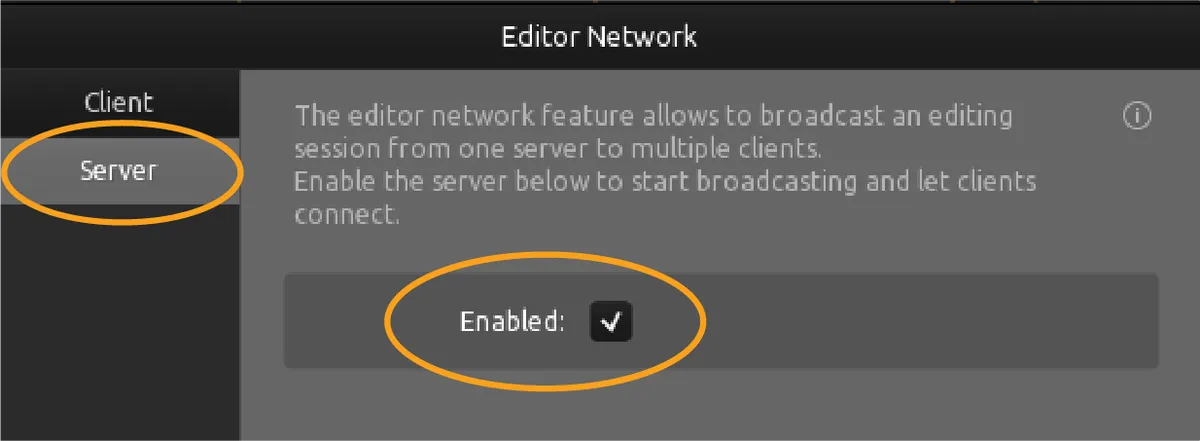
- With the editor open, select the Editor Network to transfer the layout to your tablet. Make sure both devices are on the same network.
On the Computer :

On the Tablet :
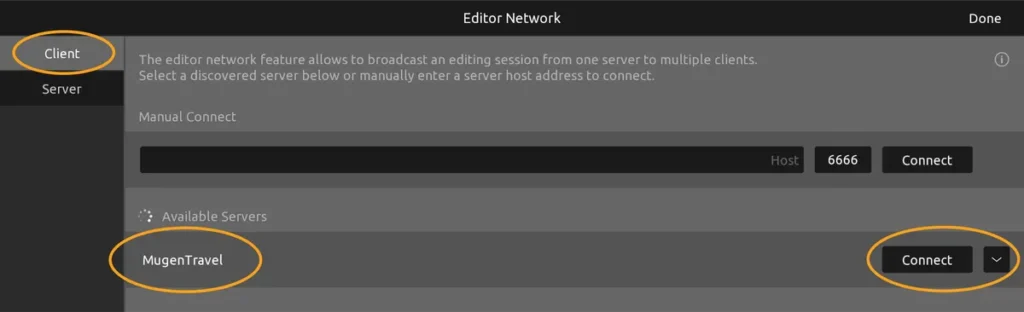
- You have successfully transferred your layout to the tablet !
- You can close the TouchOSC Editor on the computer.
Set the connection from TOSC to MA2
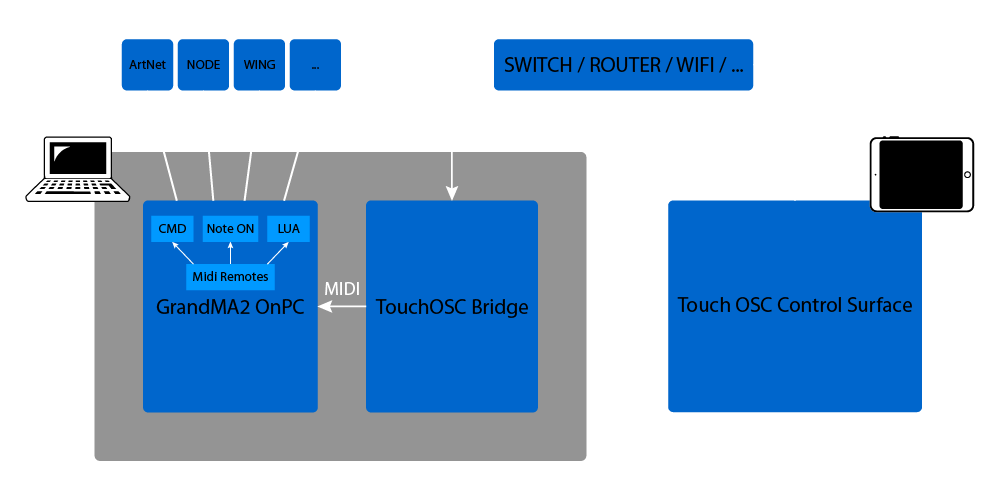
Signal Flow Overview
Various methods can be used to establish a connection between TOSC and MA2, whether through wired or wireless means, utilizing different network protocols. Each method has its strengths and is suited for different contexts.
TouchOSC Setup
TouchOSC is running on your tablet, and MA2 is running on your computer
- The connection / communication will happen via TouchOSC Bridge, Midi over Wi-Fi : Tablet >> Bridge >> MA2
- Open the Bridge app on the computer
- On your tablet, go into the connection menu and set the MIDI connection to bridge.
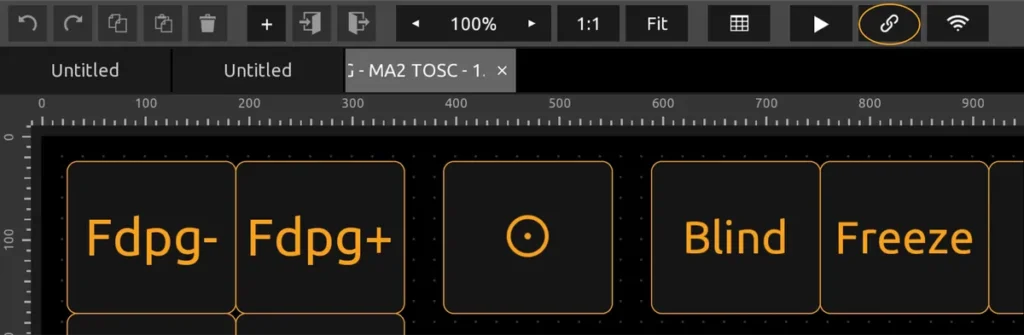

MA2 Setup
All the content has been created with MA2 3.8. Make sure that you use this version or higher.
- Ensure GrandMA2 on PC is installed and updated to the latest version.
- Open GrandMA2 on PC and create or open a show file.
- In MA2, click on the yellow ball and go to options. Click on the MIDI tab and set the MIDI in device to bridge.
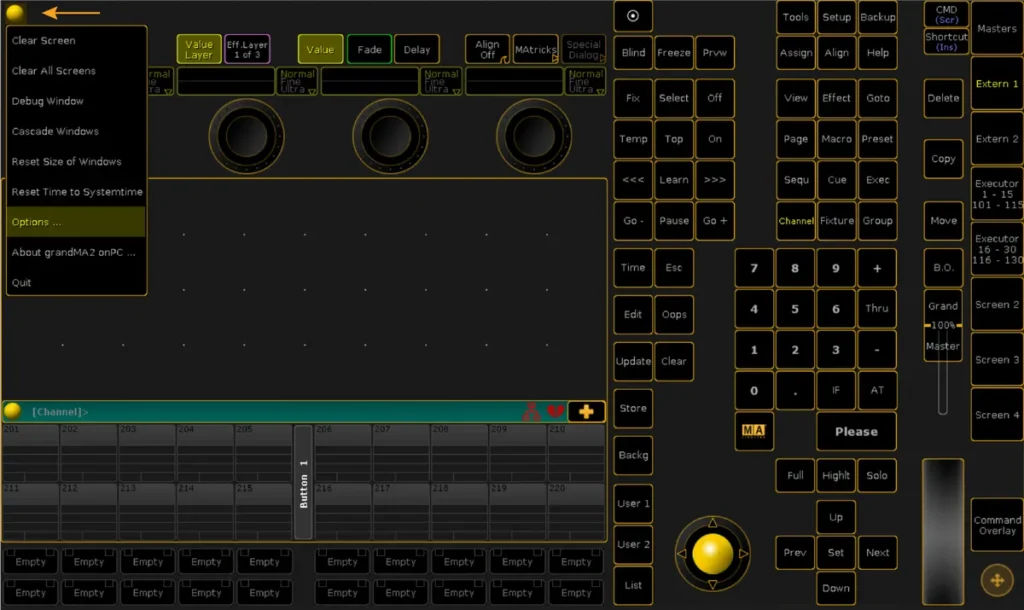
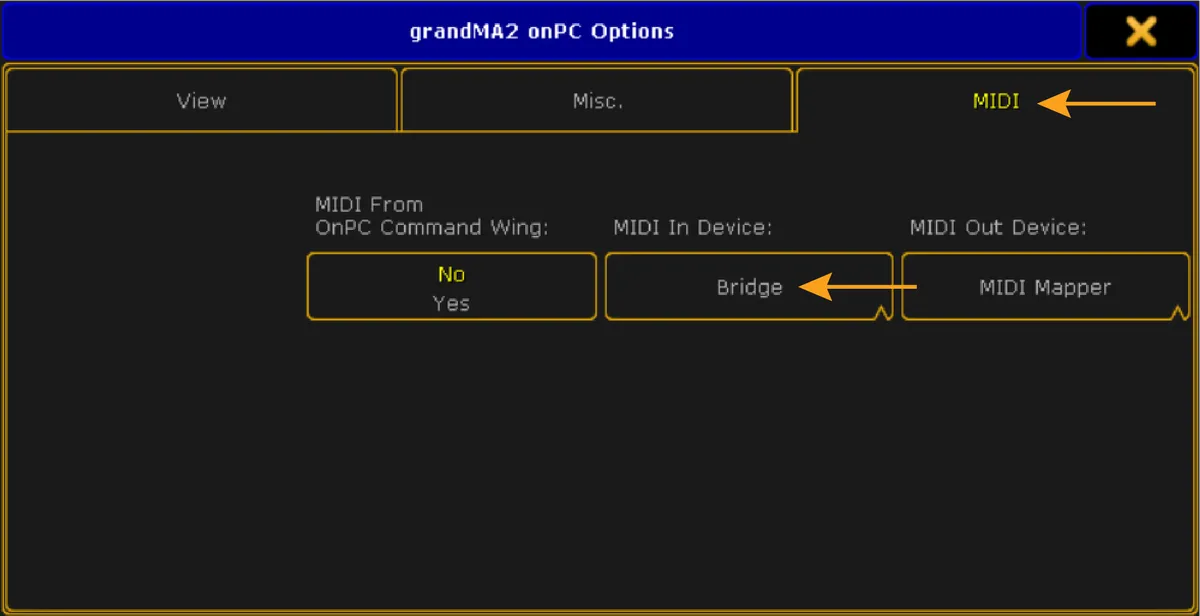
- The connection should be set now. We can verify that by going into Setup >> Remotes Input Setup >> Midi
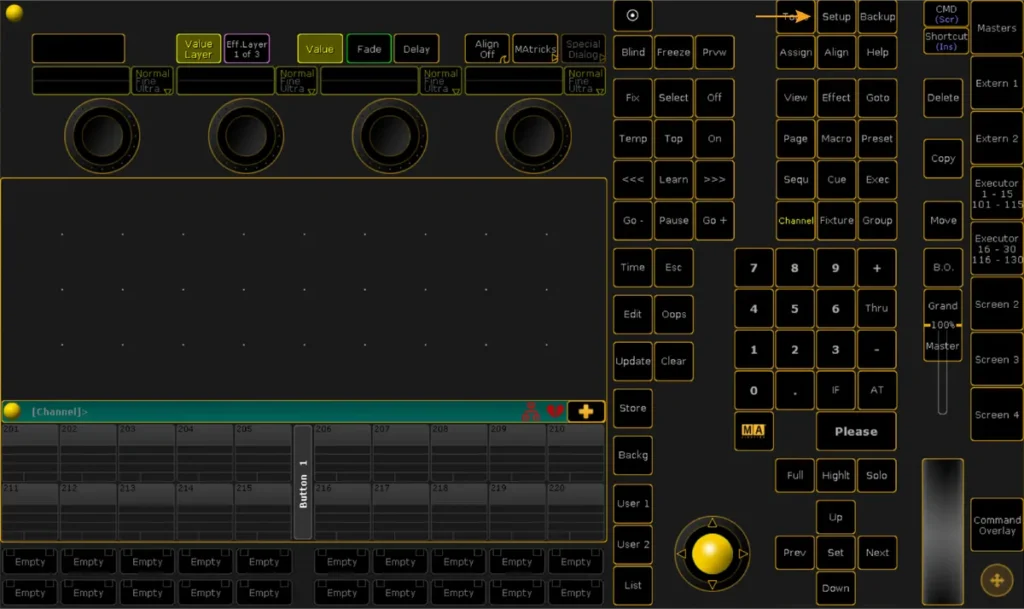
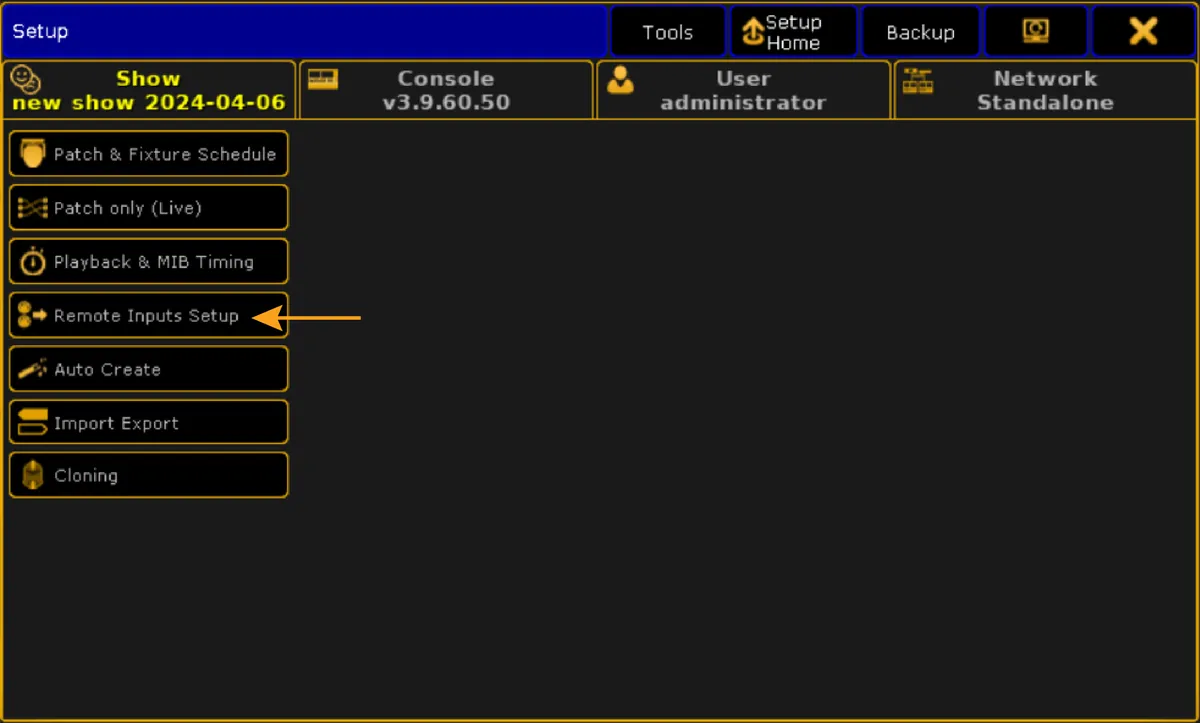
- By clicking on the little “i” button, you can see incoming messages
- If you touch a button on the tablet, some messages should appear here.
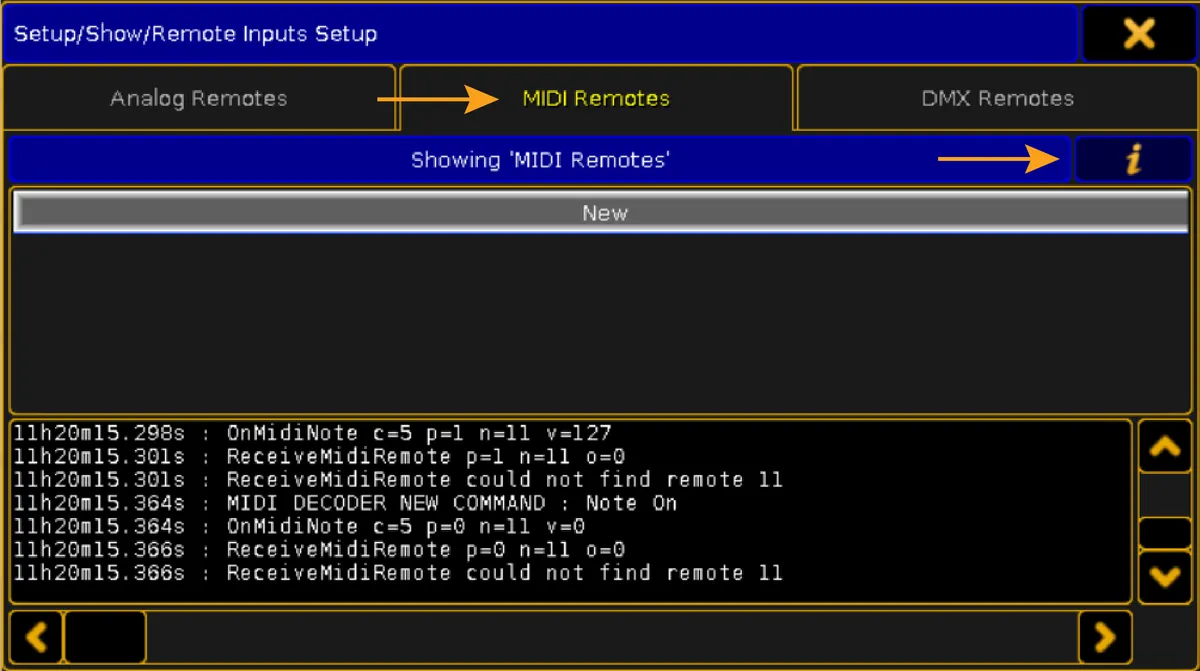
- If not, it means that the connection between the tablet and the On-PC computer is not set properly, and they are not communicating
- To monitor and debug signal issues, you can use the Protokol tool available here.
- Additionally, consider reviewing the Getting Started Guide from Hexler and this video for more detailed guidance.
- For further assistance, please consult the Troubleshooting section.
Set Up the MA2 Show File
PRO Version
- On MA2 : Create Basic Window → System → Plugins → Edit New Plugin
- Paste the LUA plugin code → Save
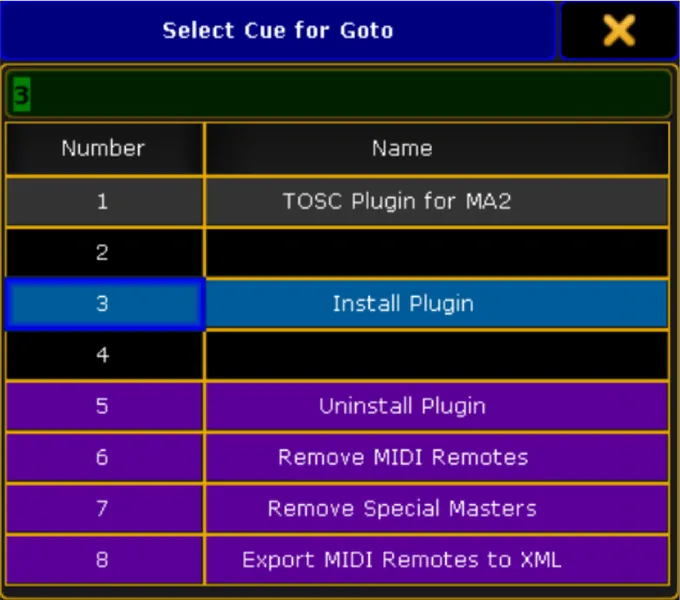
- Tap the plugin → choose “Install Plugin”
- Confirm the dialog: “
- “This will install MIDI Remotes and assign Special Masters for TOSC communication.
- If you have executors on Pages 101–105, they will be deleted and replaced.
- Proceed with installation?”
- Press Please → Please → Please
- “PLUGIN COMPLETED SUCCESSFULLY ! MIDI Remotes have been installed.
- Special Masters were assigned to Pages 101–105 for communication with TOSC.
- You do not need to use or modify them. They are for backend purposes only.”
To see what the plugin actually did, check the Command Line feedback and the System Monitor window. They will show you the full execution log, including any errors.
LITE Version
If you open the MMG – MA2 TOSC – 1.44.1 Showfile.gz, you don’t need to follow those steps as the midi remotes and the special masters assignations are already done.
All the content has been created with MA2 3.8. Make sure that you use this version or higher.
Importing the Midi Remotes
- Now that the connection is set up properly, we can proceed to import the MIDI remotes.
- Please note that when an import is made, if you already have MIDI remotes in your show, they will automatically be erased by the new remotes.
- Locate the XML midi remotes file, and move it to your GrandMA2 folder on the computer
>> C:\ProgramData\MA Lighting Technologies\grandma\gma2_V_3.9.60\importexport - In Ma2, you can now import the Midi Remotes file via the command line or by using the provided macro.
- Via CMD Line
- Import “MMG_MA2_TOSC_-_1.44.1_MIDI_REMOTES” At Remote 2
- Via Provided Macro
- To import the provided macros, locate the macros file, and move it to your GrandMA2 folder on the computer
>> C:\ProgramData\MA Lighting Technologies\grandma\gma2_V_3.9.60\macros - Then go to Setup > Import Export > Macros – and import them to the desired Macro Pool Item Number
- Run the first macro “TOSC Midi Remote IMPORT”
- To import the provided macros, locate the macros file, and move it to your GrandMA2 folder on the computer
- Via CMD Line
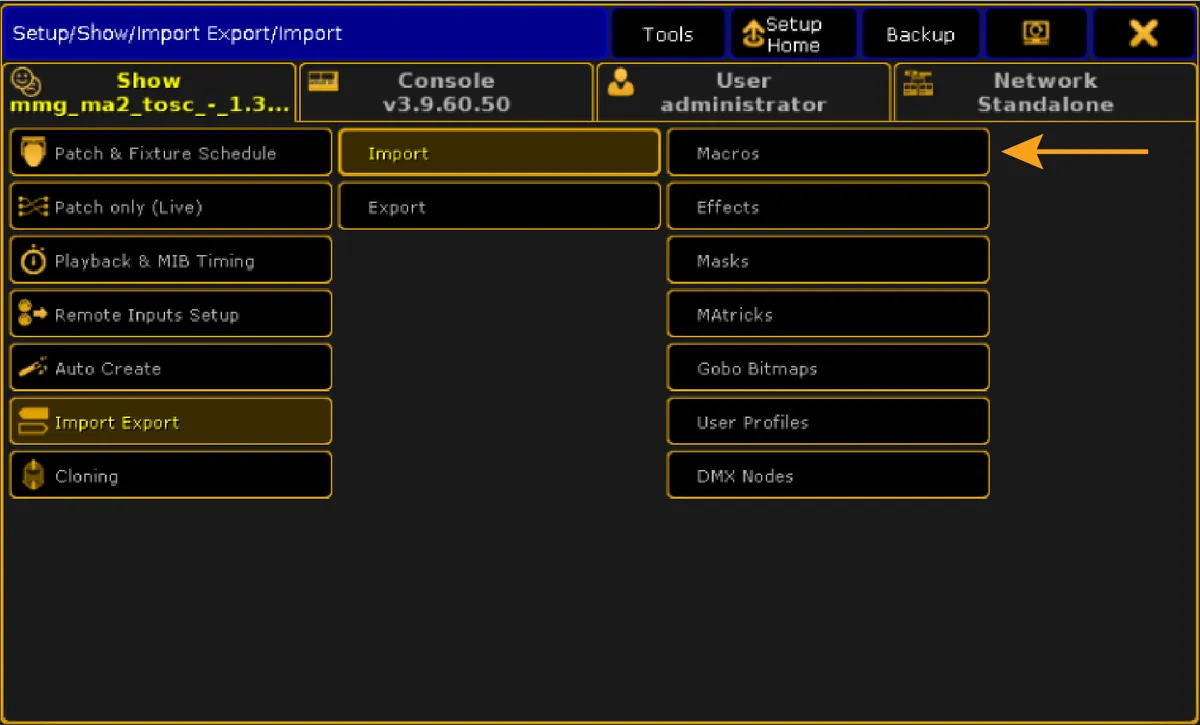
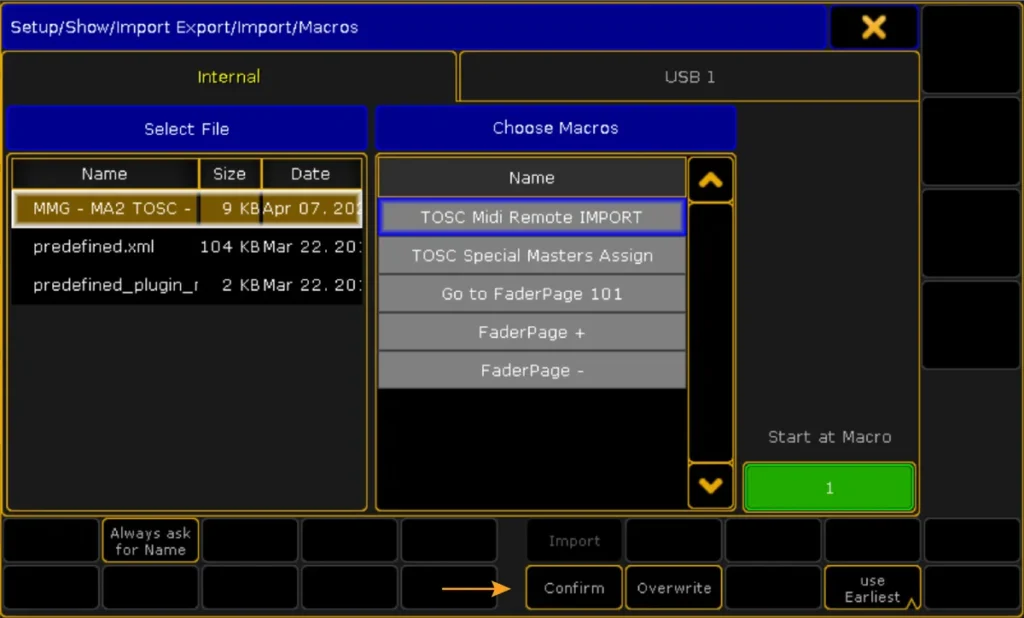
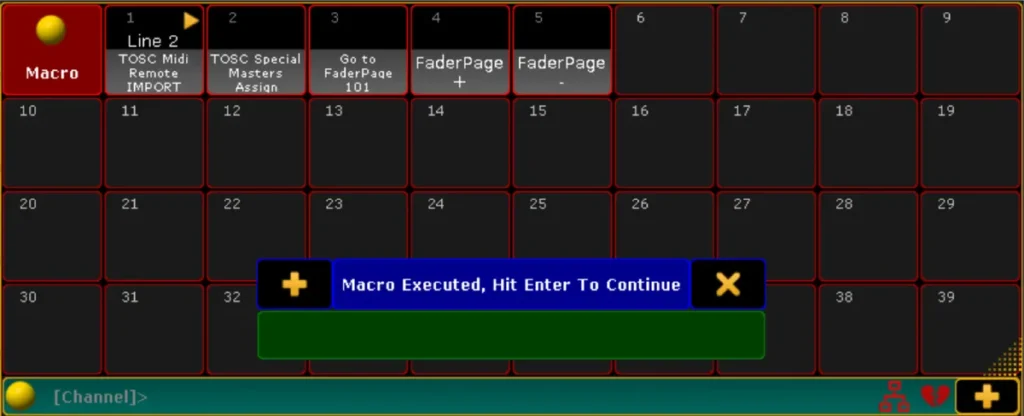
We can now see the Midi Remotes by going to Setup >> Remote Inputs Setup >> Midi
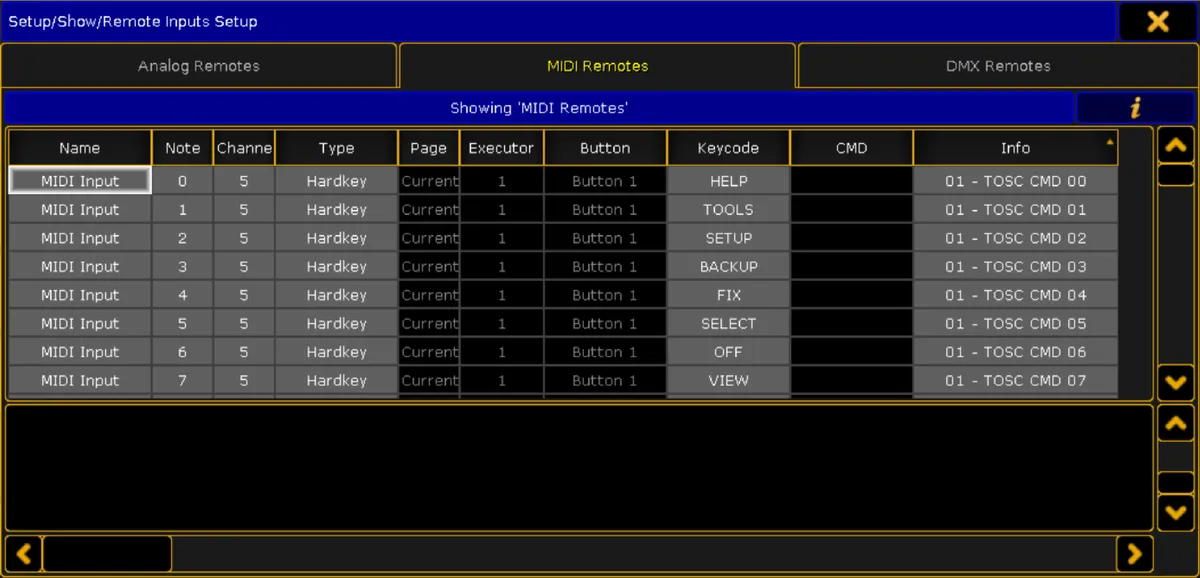
You have successfully imported the MIDI remotes !
Assigning the Special Masters Exec Faders
- Now that the Midi Remotes are set up properly, we can move on Assigning the Special Masters Exec Faders in our show file.
- In MA2, we cannot midi map the special masters directly, so a workaround is to create normal exec faders and then assign them to the corresponding special master we want to control.
- The midi remotes are controlling those assigned Exec Faders. The macro will populate them automatically on pages 101 thru 105
- Run the macro “TOSC Special Masters ASSIGN”
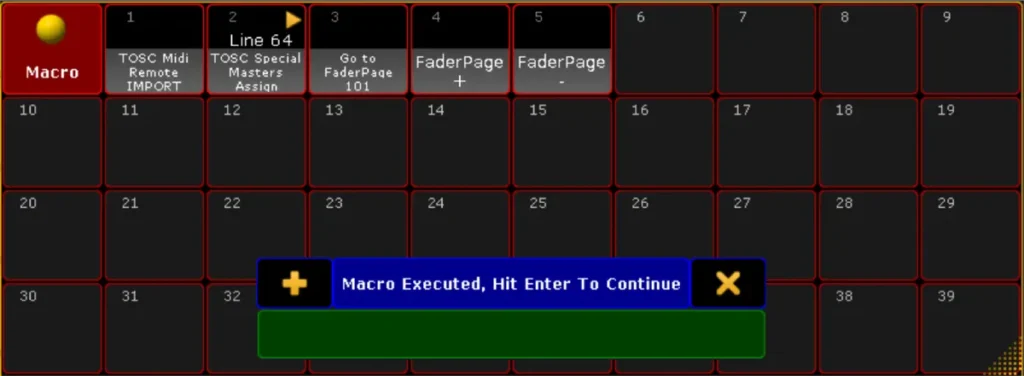
- To make sure our execs are correctly populated we can “Go to FaderPage 101” or run the corresponding macro and check the pages 101 thru 105
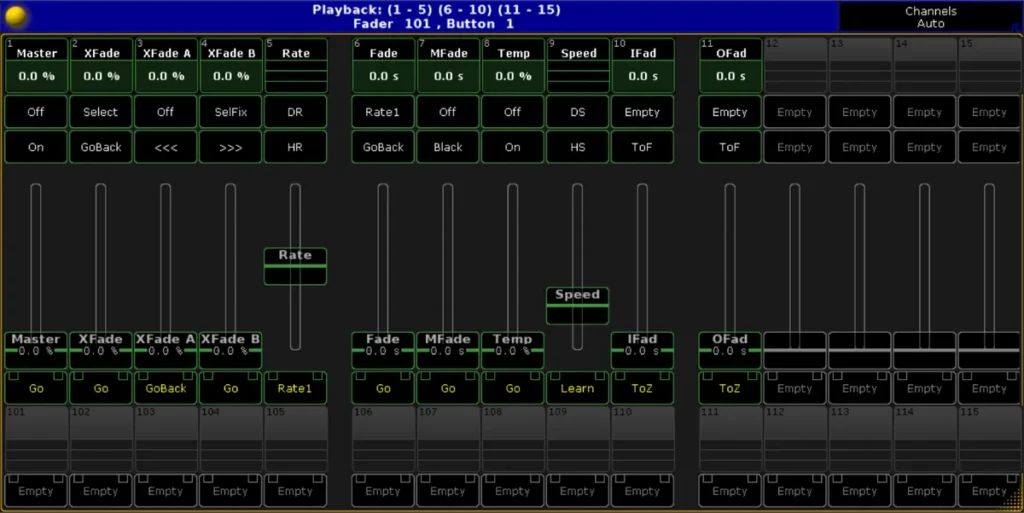
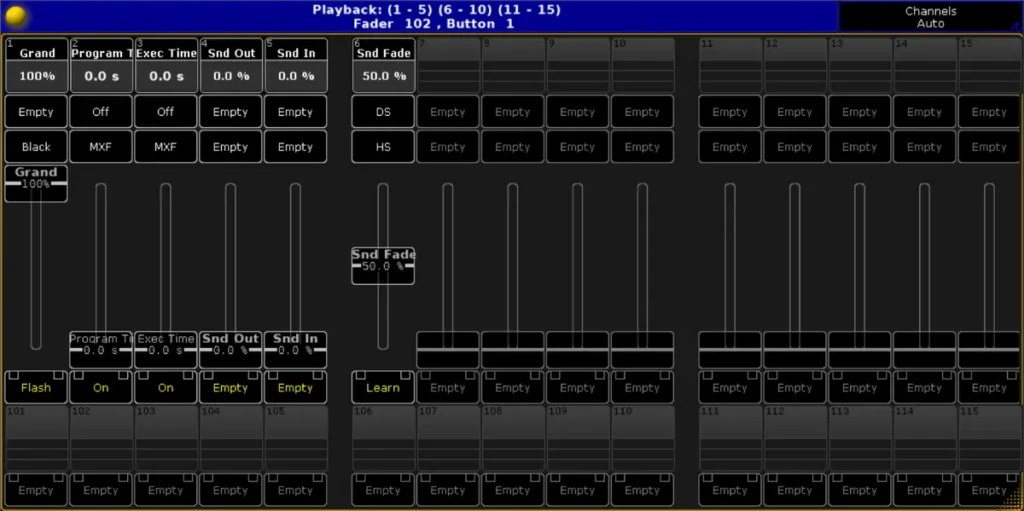
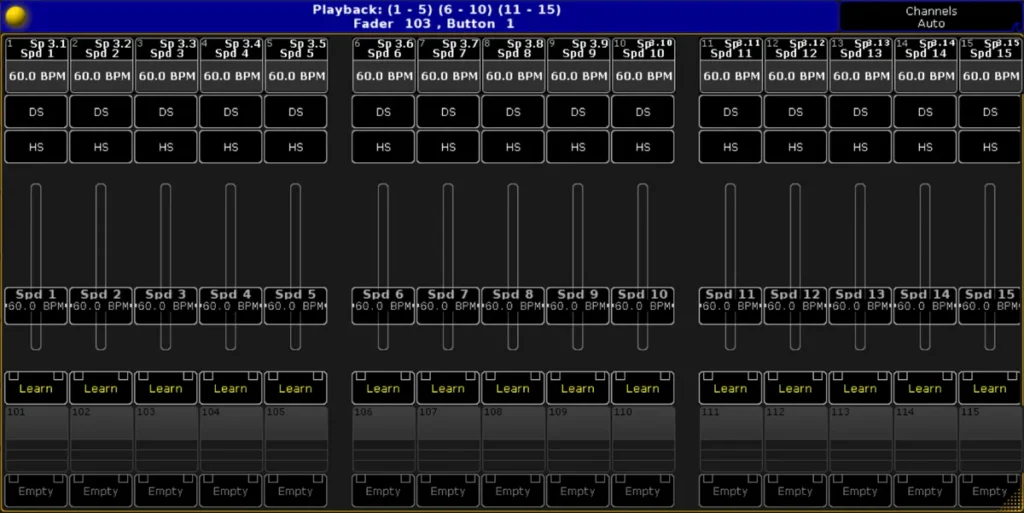
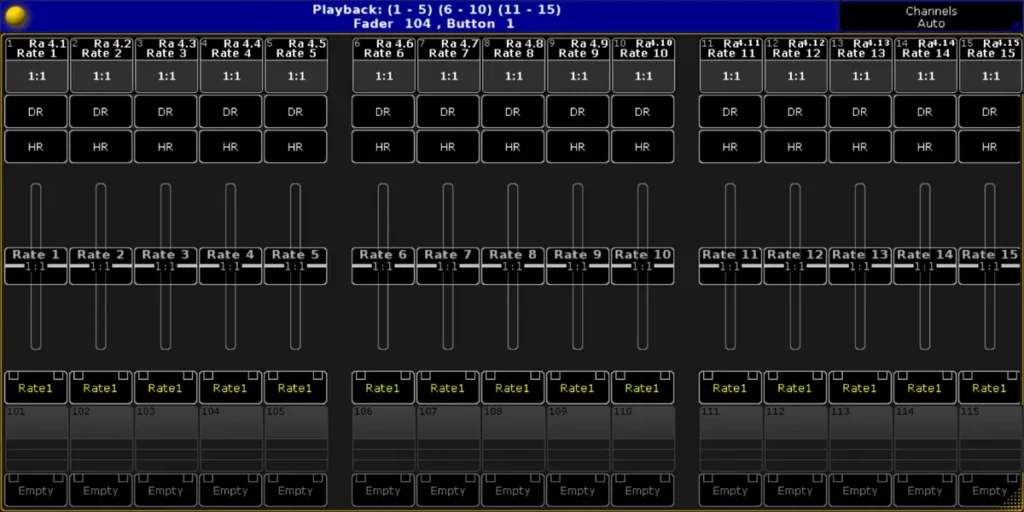
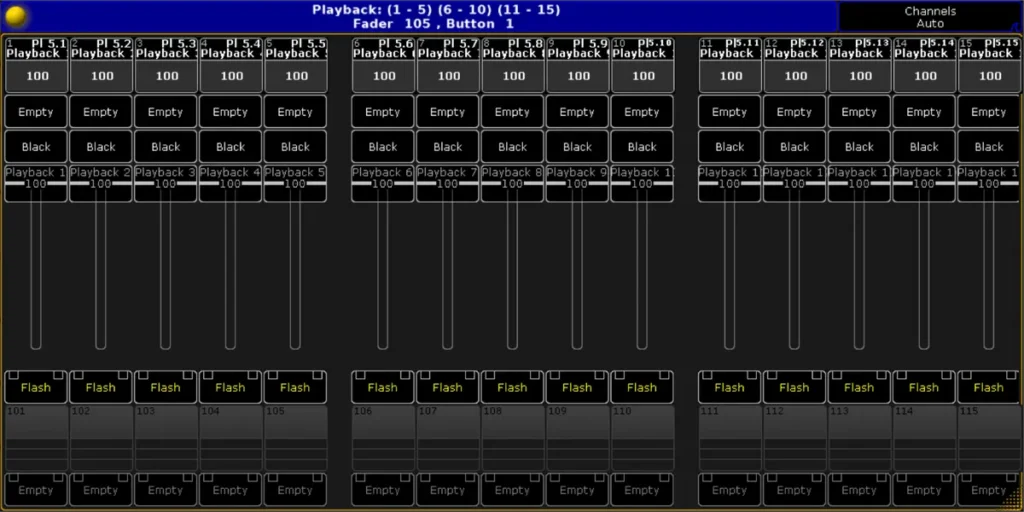
- Test to move a fader on the tablet, like the grand master, for example. The corresponding fader should move on MA2
- All the special masters are now correctly assigned !
- Once set, you don’t need to go to this page anymore. Just forget about them and carry on with your show programming as usual.
Conclusion
Your TouchOSC layout is now successfully integrated into your GrandMA2 network.
You are ready to execute your live shows and pre-programming sessions with a highly reactive, zero-latency control surface.
This architecture is under active development, and new hardware integrations will be pushed in forthcoming versions.
If you need custom functionality, advanced API routing, or dedicated technical support for your production, feel free to contact me directly.
Feedback
I am continuously refining this architecture. Field data from active lighting programmers plays a critical role in future development updates.
What you can share :
- Feature Requests: Share your thoughts on UI/UX improvements or new network integrations you need for your upcoming shows.
- Bug Reports: Encountered a technical routing issue? Please provide detailed reproduction steps and system screenshots so I can patch it in the next build.
- Production Showcases: Has this layout accelerated your workflow? Send photos of your Front of House setup in action.
Your input drives the rapid evolution of these tools. If this layout has leveled up your workflow, sharing it with other programmers helps expand the ecosystem.

Max Mugen Lighting
Lighting Designer | Visual Artist | Automation Developer
I engineer lighting architectures, interactive control systems, and automation workflows for live performance and high-end studio pipelines. Available for custom system design and technical programming.
Work With Me
Explore My Work
Stay Connected


