
Before You Start
About This Layout
This guide explains how to understand, customize, and adapt the TouchOSC layout for grandMA2. I have already fully programmed and optimized the layout. Furthermore, I utilized almost all available MIDI Remote slots in grandMA2, which means you do not have to build anything from scratch. Instead, you simply modify and personalize what is already in place.
Here you will learn how to change commands assigned to buttons and encoders, rename interface elements, change colors, add or remove pages, use Edit Mode, and understand the logic behind faders, masters, popups, and page systems. Ultimately, my goal is to give you full control without breaking the internal structure of the layout.
Version & Updates
Current public version: 1.44.1
I update the layout and this documentation regularly with improvements, fixes, and new features. Therefore, you can check the Changelog, Roadmap, or come back to this document to see updates.
Additionally, if you want to request features or early access to upcoming versions, you can contact me directly.
Who This Guide Is For
Specifically, I wrote this guide for:
- Lighting designers, programmers and technicians using grandMA2 with TouchOSC MK2
- Users who want to customize or modify the layout, not just operate it
- Anyone who wants a playback-only interface for staff or venues (see Section 3.1 Simple Interface)
What You Need Before Using This Layout
To use this system, you will need:
- TouchOSC MK2
Desktop Editor (for transferring or editing the layout) Mobile/Tablet App (iOS or Android)
- GrandMA2 version 3.8 or newer
Older versions of GrandMA2 like 3.7 or 3.5 are not fully compatible. Downgrading is technically possible but not supported
- TouchOSC Bridge or any MIDI-over-network tool
Used to send MIDI from the tablet to MA2 on your PC
This documentation is made specifically for the layout I created and sell. If you don’t have it yet, you can get it via my Website or Gumroad.
Section 1 – Understanding the Layout
1.1 Introduction to the Interface
The layout is organized like a virtual MA2 console designed for touchscreens. Everything is placed in dedicated zones so you always know where to look to trigger commands or open pop-ups
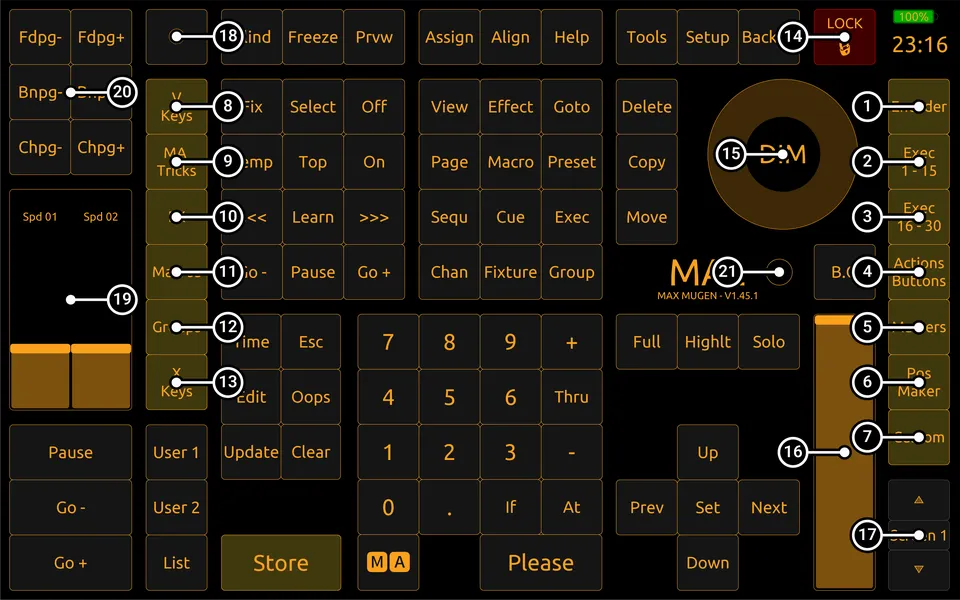
To make navigation clear, you can think of the interface as four main areas:
Right Navigation Bar
- Encoders – Opens the encoder wheels panel (Pan, Tilt, Color, Beam, Focus, etc.)
- Exec 1-15 – First executor bank. These are the main playback buttons.
- Exec 16-30 – Second executor bank for additional pages or cues.
- Action Buttons – A large grid of configurable buttons for macros, sequences, cues, etc.
- Masters – Opens the popup where you can assign and control Speed Masters, Rate, Program Time, Grand Master, etc.
- Pos Maker – Position Maker window. The Pan/Tilt “trackball” module using real MA2 ball commands, Align functions, positions store etc.
- Custom – Custom pages and empty pages you can duplicate to create your own layouts.
Left Navigation Bar
- V-Keys – Virtual MA console command keys (V1–V10)
- MAtricks – Access to Align, Group, Wings, Blocks and MAtricks settings.
- Effects – Directly triggers Effects 1001–1080 from the MA2 Effect Pool.
- Macros – Triggers Macros 1001 to 1080 from the MA2 Macro Pool.
- Groups – Calls Group 1001 to 1080 from the MA2 Group Pool.
- X-Keys – Virtual equivalents of the MA2 hardware X1–X20 keys
Central Area
- Lock Button – Locks the desk. This opens the lock screen where you can access other things like simple interface, screensaver, edit mode and games.
- Dimmer Wheel – Dedicated dimmer encoder.
- Grand Master – Controls the Grand Master output level.
- Screen Encoders – Up/Down buttons that move the MA2 on-screen cursor and allow you to change the linked screen.
- Special Master Popup Assign – Tap to assign what the 100 mm faders control (Speed Masters, Rate, Program Time, Grand Master, etc.).
- 100 mm Faders – Two physical-length faders used for Special Masters or other assignable controls.
- Long Press Commands – Some buttons in this area have long-press behavior to trigger additional functions.
- Help Overlay (“?” icon) – Activates visual explanations on each window. Can be turned on/off anytime.
1.2 Lock Screen & Soft Lock Delay
When you press the LOCK button, a MIDI command is sent to MA2 to lock the desk, and the TouchOSC layout switches into a dedicated lock screen.
From here, only a limited set of tools can be accessed.
What happens:
- The MA desk is locked
- A black overlay appears above the interface
- Only a restricted set of tools remains available (listed below)
- Unlocking restores full control of the layout
Lock Screen Overview
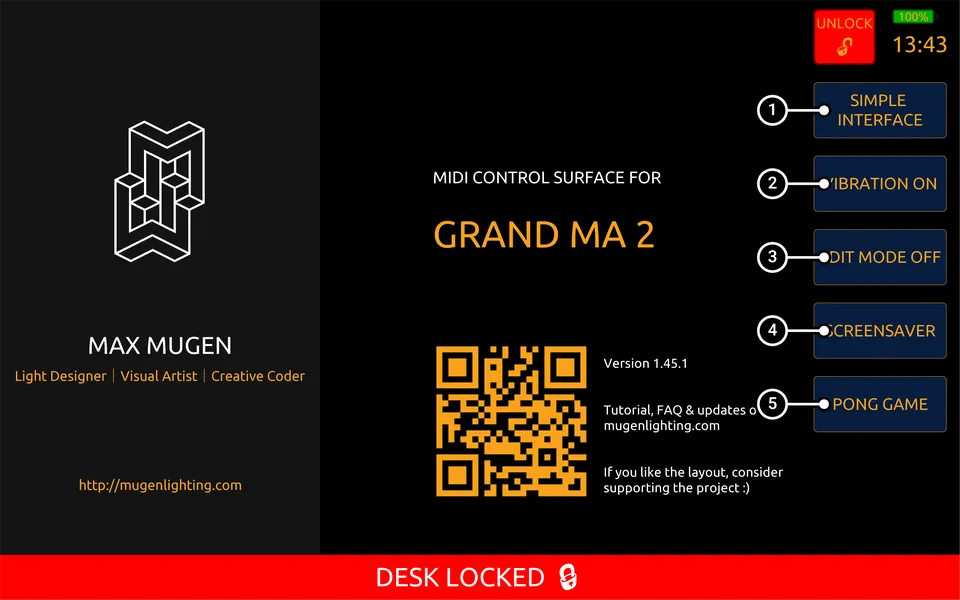
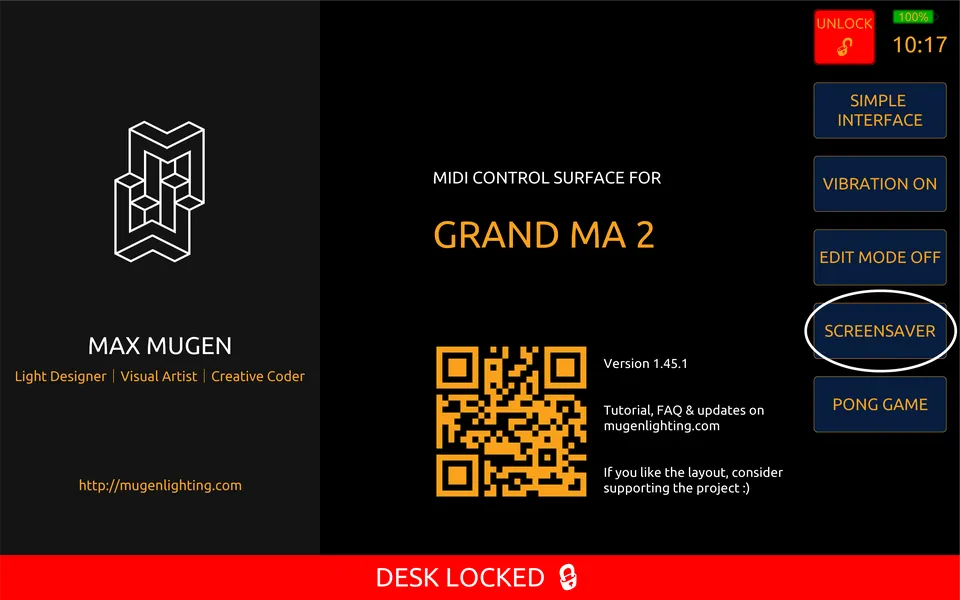
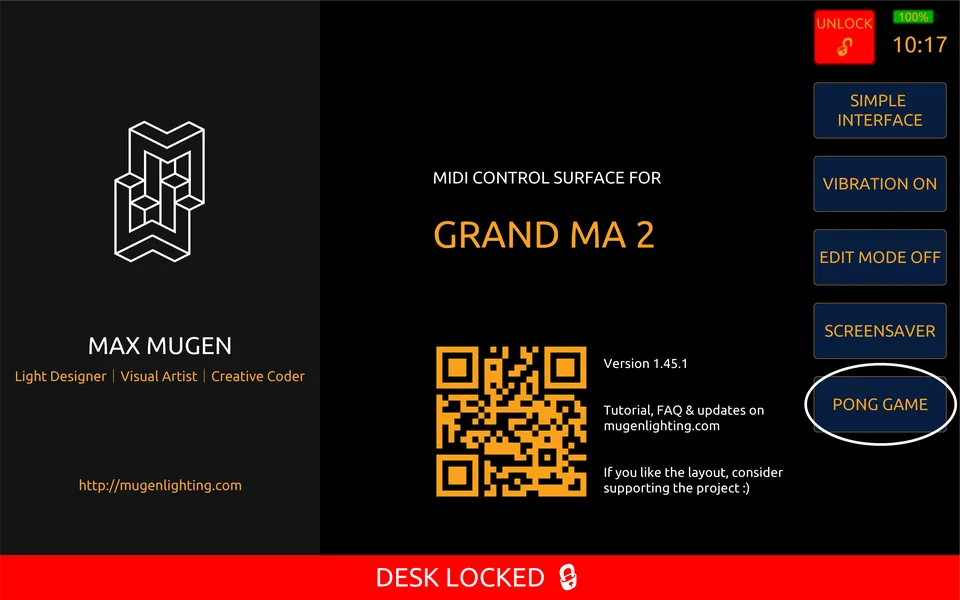
- Simple Interface – Unlocks the desk but only displays a blank, safe page. Ideal for non-technical users or playback-only access.
- Vibration – Enables haptic feedback on supported devices (Android/iPhone only, iPad has no vibration hardware).
- Edit Mode – Allows you to rename, recolor or reposition buttons directly from the tablet. No computer or coding required.
- Screensaver – A visual screensaver module. (*)
- Pong Game – A built-in arcade module. (*)
(*) Both screensaver and game stop automatically when you exit the lock screen. They don’t run in the background.
Soft Lock Delay
The LOCK button intentionally has a 3-second cooldown before it can be pressed again.
Not a bug. Not lag. A safety feature.
Why?
Because many users press the lock button like it’s the CLEAR key.
Repeatedly, and with zero mercy, like a stressed cashier on a Black Friday checkout.
If the layout reacted instantly each time, it could:
- Spam MA2 with multiple lock/unlock commands
- Desynchronize the tablet and the console
- Cause MIDI flooding or UI freezes, especially on slower tablets
This tiny pause keeps everything in sync and prevents accidental chaos.
1.3 INIT Function
The INIT function is a built-in startup reset. It runs only once automatically when you open the layout for the first time, you don’t have to press anything. It will not run again unless you fully close and restart TouchOSC.
What INIT Does
When the layout launches for the first time, it:
- Closes all pop-ups, windows and overlays (FX, Macros, Encoders, Pos Maker, etc.)
- Resets page switches (Exec 1–15, Action Buttons, Custom Pages) back to their default state
- Shows the short Welcome screen once, then disappears
- Makes sure everything looks and behaves exactly as intended before you start working
This has nothing to do with your MA2 showfile. It only cleans and resets the TouchOSC interface.
Important to Know
- INIT runs only once automatically when you load the layout in TouchOSC
- It does not run after switching between Editor Mode and Tablet Mode
- To make it run again, you must fully close and reopen TouchOSC
- It never modifies your MA show, commands, presets or programming, only TouchOSC UI
1.4 Screen Size & UI Scaling
This layout was designed at a native resolution of 2560 × 1600 pixels (16:10 aspect ratio), the same format as tablets like the Samsung Galaxy Tab S8.
Every element, pop-ups, fader slots, masked overlays, encoder zones, invisible logic blocks, is placed pixel-perfect based on this resolution.
TouchOSC Mk2 automatically scales the layout to any screen size, but it always keeps the original 16:10 proportions.
Why You Should Not Resize the Layout
Changing the layout resolution in the editor will break things.
The layout contains:
- 9,492 objects in total
- 1,774 hidden elements (pop-ups, overlays, masks)
- 1,859 scripted objects
- 1,420 MIDI-mapped controls
- 142 grouped systems
TouchOSC does not auto-realign any of this. If you change the canvas size, you would need to:
- Move every object manually
- Fix pop-up positions and mask overlays
- Rebuild fader hit zones and interaction areas
- Repair all coordinate-based scripting
Even a minor change in resolution misaligns core logic and causes UI errors.
Conclusion
I often get asked if I can make a version of the layout for a different screen size or orientation (like vertical mode). Unfortunately, this layout is built on thousands of precisely aligned objects and resizing it properly would mean rebuilding everything from scratch.
For this reason:
- I do not provide custom resolutions or “stretched” versions of the layout
- I do not recommend trying to resize it yourself in TouchOSC Editor
I did experiment with alternate layouts (including a vertical format), but none reached a usable standard yet.
If you have a real need for a different orientation or resolution and want to discuss it seriously, feel free to contact me.
1.5 Page Structure, Fixed vs Dynamic Pages
This layout is built on a single TouchOSC page. What changes are the pop-up groups that appear on top of it.
There are two behaviors:
- Fixed Pages → Always control the same executor page in MA2 (Page 20 in this layout)
- Dynamic Pages → Follow whatever executor page you select on the console
Understanding this is essential before editing faders, buttons, or MIDI remotes.
Fixed Pages
These always control Executor Page 20 in MA2, no matter which page is active on the console.
In this layout, Fixed Page elements include:
- Exec 1–15 when in Fixed Mode
- Action Buttons when in Fixed Mode
- Some Custom Pages
Dynamic Pages
Dynamic areas follow the currently selected executor page on MA2.
- Switch MA to Page 2 → the layout now controls Page 2
- Switch to Page 15 → layout controls Page 15
- This is ideal for programming and cue building
Switching Between Fixed / Dynamic
You can toggle anytime using the switch buttons at the top-right of the fader or actions section.
Dynamic→ follows MA pageFixed 20→ locked to Executor Page 20
After startup, the layout always resets to Dynamic Page 1.
Important to Know
To avoid breaking paging and MIDI logic:
- Do not rename core pop-up groups like
POP EXEC 1-15,POP ACTION BUTTONS, etc. - Do not delete or move the Page 20 fixed areas unless you fully understand MA2 MIDI Remote mapping
- If you remap to another page (ex: Page 30 instead of 20), you must change the MIDI remotes in MA2 accordingly
- If several users request another fixed page number, I can provide a version mapped to Page 30 or higher
Feel free to contact me if you need a custom configuration.
1.6 Help Overlay
The “?” icon in the top bar activates the Help Overlay, a built-in guide that explains what some button, or window does directly on the interface.
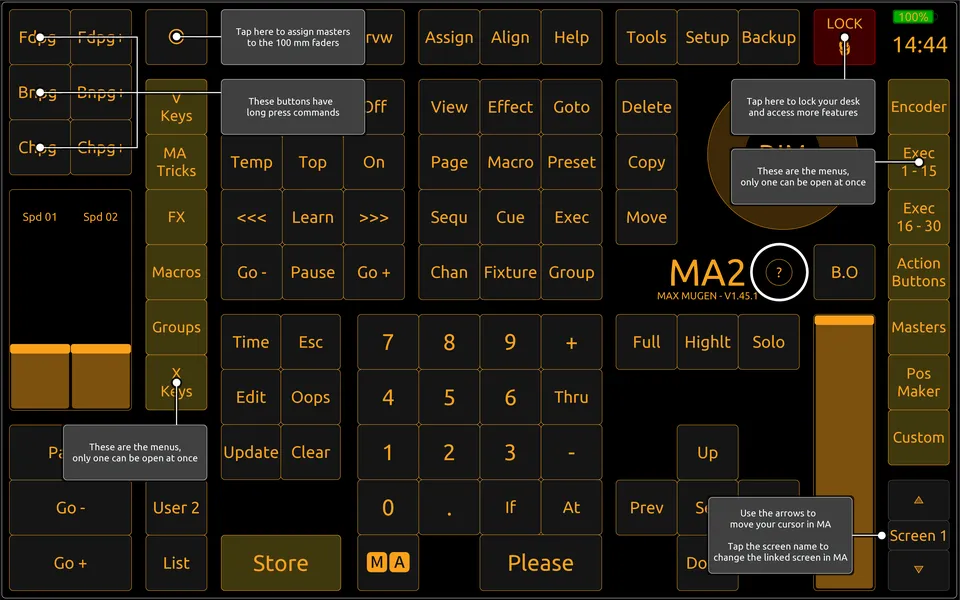
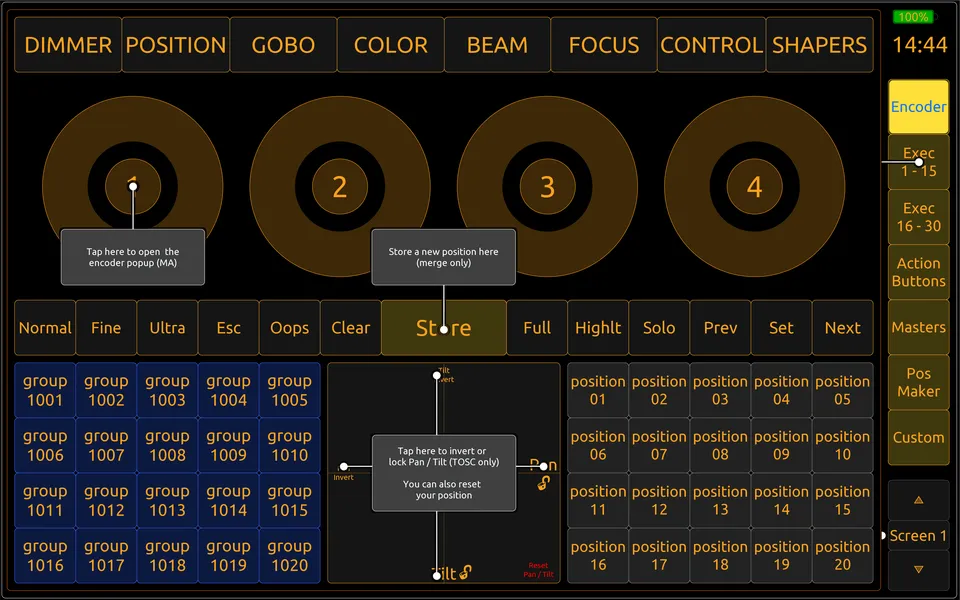
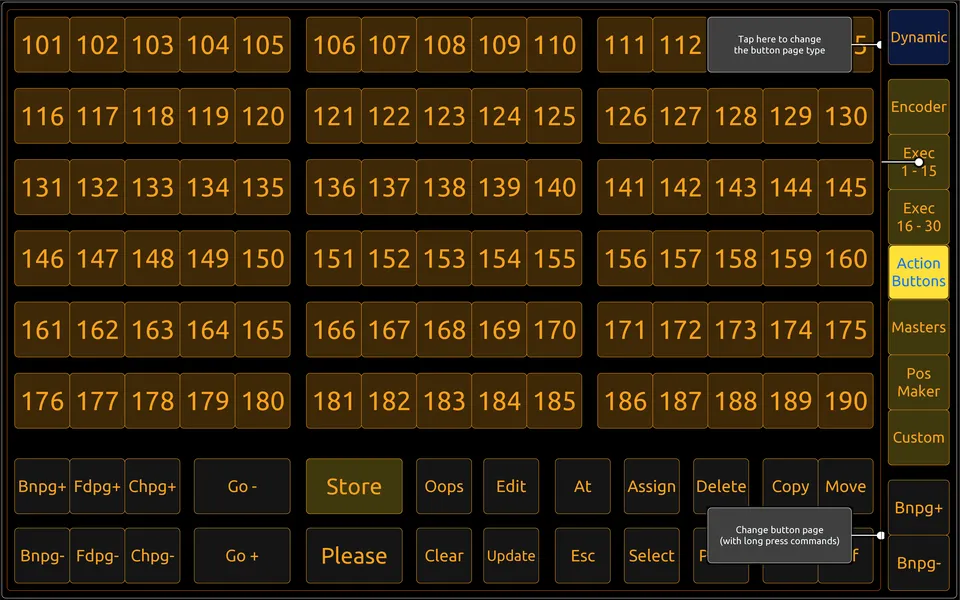
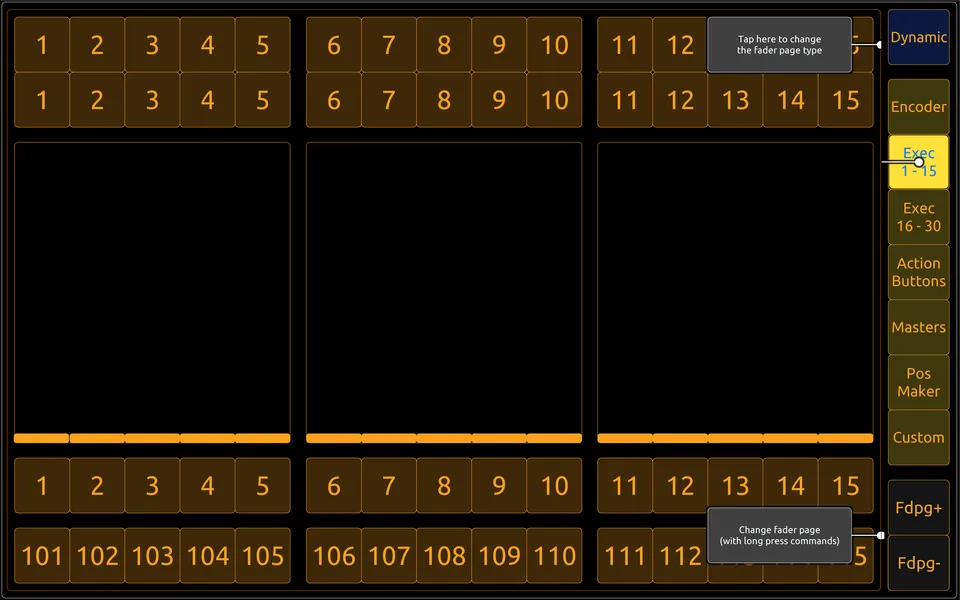
When enabled:
- Each UI element displays a small label or description on top of it
- You can turn On/Off Help mode anytime without affecting your current cues, selections or values
This feature is useful if:
- You are using the layout for the first time
- You share your tablet with other operators or students
- You want to quickly remember what a function or button does without opening the manual
How to toggle it:
- Tap “?” icon → Help Overlay turns on
- Tap again → Overlay disappears and interaction returns to normal
It works on most pages and popup across the whole layout.
Section 2 – Working with Core Functions
2.1 Encoders Window
When you press Encoders in the right navigation bar, a pop-up opens with a virtual encoder section, very similar to the hardware encoder wheels on a real grandMA2 console.
You can control Pan, Tilt, Color, Gobo, Beam, Focus, Dimmer, Shapers, Control and more, depending on which attribute page is active in MA2.
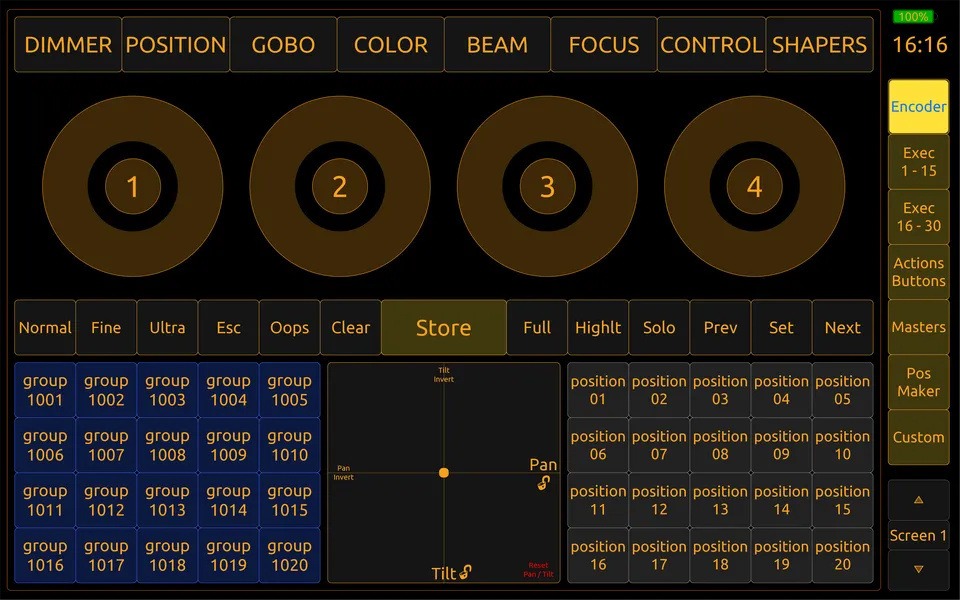
What This Window Contains
- Full attribute row: Dimmer / Position / Gobo / Color / Beam / Focus / Control / Shapers
- 4 encoder wheels (fully interactive, with push/click support)
- MA keys: Esc, Oops, Clear, Store, Full, Highlight, Solo, Prev, Set, Next
- Wheel resolution modes: Normal / Fine / Ultra (affects all four encoders)
- 20 Group buttons (Groups 1001–1020 from MA2)
- Built-in Pan/Tilt XY pad (mini version of Position Maker)
- Position 1–20 buttons from the Position Pool
Attribute Selection
Tapping any attribute label (e.g. POSITION, COLOR, FOCUS) changes what the encoder wheels control, exactly like using the attribute keys on the MA2 console.
Each attribute page assigns a new function to wheels 1–4.
Example:
- Tap POSITION → Wheels now control Pan, Tilt, Rotation, etc.
- Tap COLOR → Wheels now control Color Mix, Color Wheel, CTO, etc.
These follow the exact same behavior as pressing the Preset Type keys on the hardware console.
Encoder Wheels
The wheels behave exactly like on an MA2 desk:
- They send real encoder data via
gma.canbus.encoder() - No simulated “value jumps” or +1/+5 steps
- They support both turn and push (press + release) actions
- They respect:
- MAtricks (Wings, Blocks, Groups)
- Align mode (
</>/></<>) - Normal / Fine / Ultra resolution
- Fixture selection and active attributes
Result: encoder behavior (speed, acceleration, feel) is identical to the physical console.
Encoder Resolution & MA Keys
Normal / Fine / Ultra : Changes wheel sensitivity for all 4 encoders Esc / Oops / Clear : Same behavior as MA2 keys: cancel / undo / clear programmer Store : Arms the store command (used with Groups, Positions, etc.) Full / Highlight / Solo : Programming helpers exactly like the console Prev / Next / Set : Value stepping and confirming
Group Selector (Left grid)
- 20 buttons = Group 1001 → Group 1020
- Mirrors the first 20 items of the MA2 Group Pool
- Used to quickly recall fixtures groups while using encoders
Mini Pan/Tilt XY Pad (Center)
This small XY controller allows smooth Pan/Tilt movement using touch.
- Uses POSITION attribute (via trackball commands)
- Pan / Tilt Invert toggles (local to TouchOSC, do not invert fixture settings in MA2)
- Axis lock buttons (Pan only / Tilt only)
- Reset Pan/Tilt
- It is a simplified version of the full Position Maker found later (see Section 2.5)
Position Presets (Right grid)
- Displays Position 1–20 from the MA2 Position Pool
- If Store is active:→ Buttons switch to “Store Position 01–20” → After storing, they automatically return to normal display mode
- Full storing workflow is explained later in Section 2.5 – Position Maker
Dimmer Wheel
Besides attribute-based dimmer control, there is also a dedicated global Dimmer Wheel available at all times.
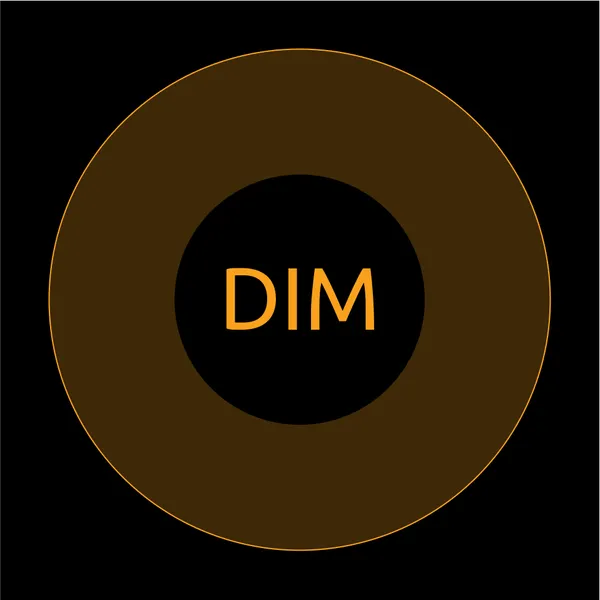
- It directly controls the dimmer value in the Programmer
- It behaves exactly like the hardware Dimmer encoder on the MA2 console
- Unlike fader-based masters, this dimmer only affects selected fixtures, not global output
If you need to control the total output of the show, use the Grand Master (see Section 2.4).
2.2 Exec Pages
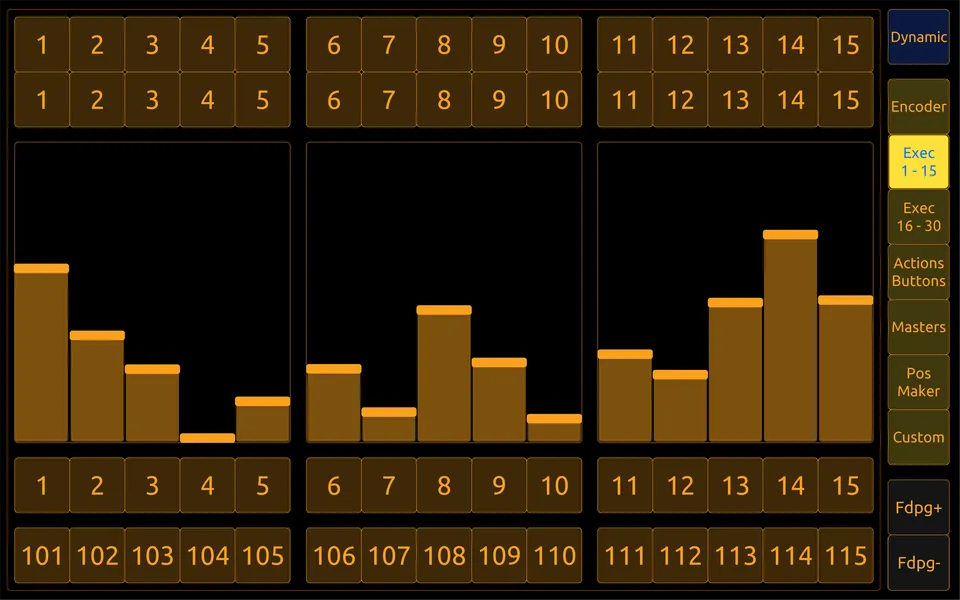
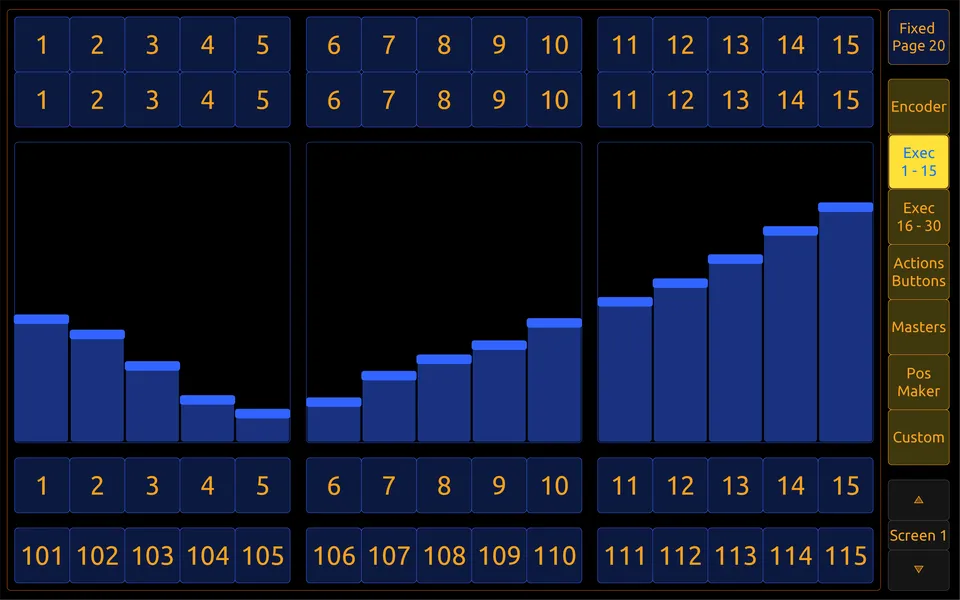
The layout includes two executor button sections:
- Exec 1–15
- Exec 16–30
They work exactly like executor keys on a real MA2 console and can operate in two modes:
Dynamic (follow MA page) or Fixed (always control Page 20).
Dynamic Mode — Follows MA2 Page
In Dynamic mode, the executor buttons always trigger the executors of the currently active page in MA2.
- Switch MA2 to Page 4 → the buttons now trigger executors on Page 4
- Switch to Page 10 → they now trigger executors on Page 10
Fixed Mode — Always Page 20
In Fixed mode, all executor buttons are permanently linked to Page 20, regardless of which page you select on the console.
Good for anything that must always stay available:
- Haze / Fog control
- Main cue list GO+ / GO–
- Blackout or Panic
- Followspot macros
- House lights / Safety control
Switch modes using the Dynamic / Fixed 20 toggle above the executor section.
Page Switching (Only in Dynamic Mode)
When Dynamic mode is active:
- Pg+ / Pg- buttons change the current executor page in MA2 (just like Page + / Page – on the console)
- Long press on Pg- instantly jumps back to Page 1 (quick way to reset)
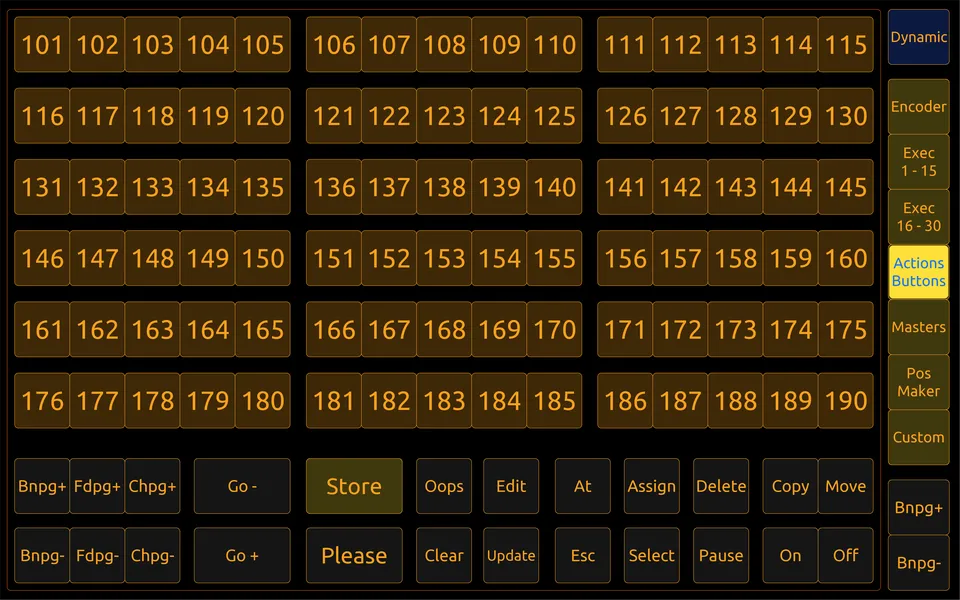
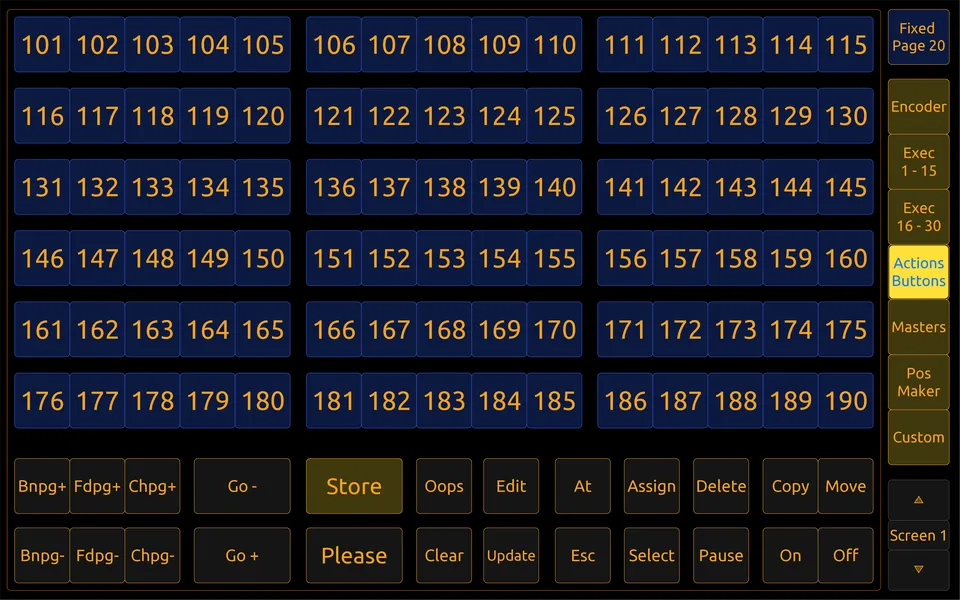
The Action Buttons page is the TouchOSC equivalent of MA2 Button Executors. The same as fader executor pages, but without faders.
It gives you fast access to buttons-only executors for cues, macros, sequences, effects, or custom commands.
What This Page Contains
- 90 executor buttons → Exec 101–190
- Dynamic / Fixed 20 toggle → same system as faders
- Page Up / Page Down → changes MA2 executor page when in Dynamic mode
- Long-press on Pg- jumps directly back to Page 1
- Bottom row with MA keys:
Store, Please, Go+, Go-, Assign, Copy, Move, Update, Esc, Clear, On, Off, Pause, etc..
Everything is already MIDI-mapped, no configuration is required in MA2.
Dynamic vs Fixed Mode
Dynamic : Buttons follow the current executor page in MA2 Fixed Page 20 : Always control executors on Page 20
Switch using the toggle on the right side → Dynamic / Fixed Page 20
2.4 Masters Window & Special Master Assignment
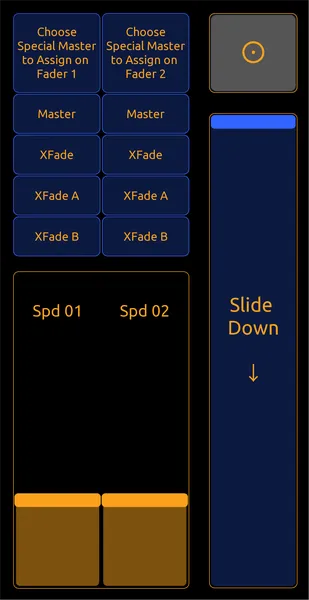
This chapter explains two things:
- The Masters Popup – where you see all Special Masters (Speed, Rate, Program Time, etc.) in one place
- Assigning Special Masters to the 100 mm Faders – how you quickly choose what the two big faders control
Masters Popup Window
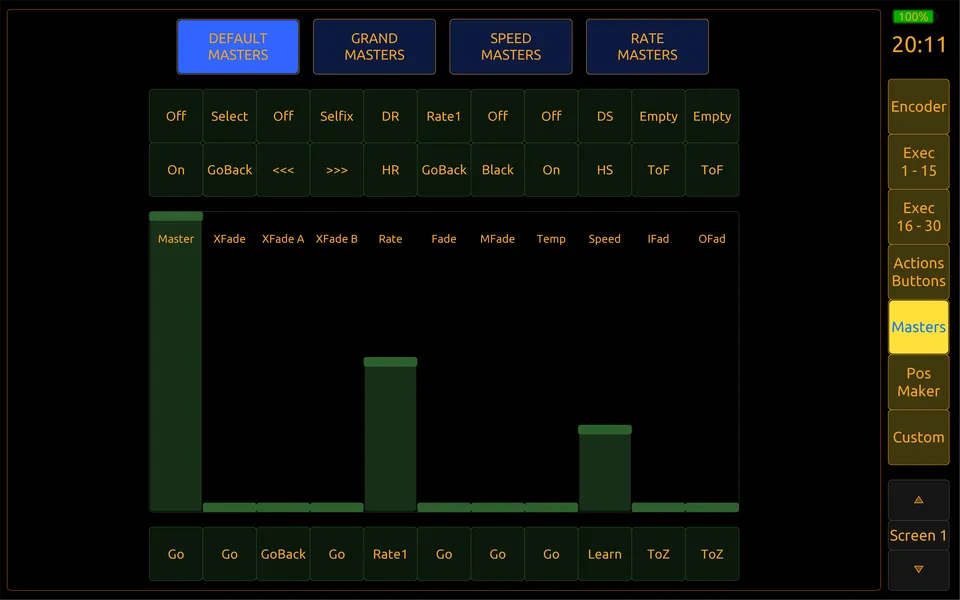
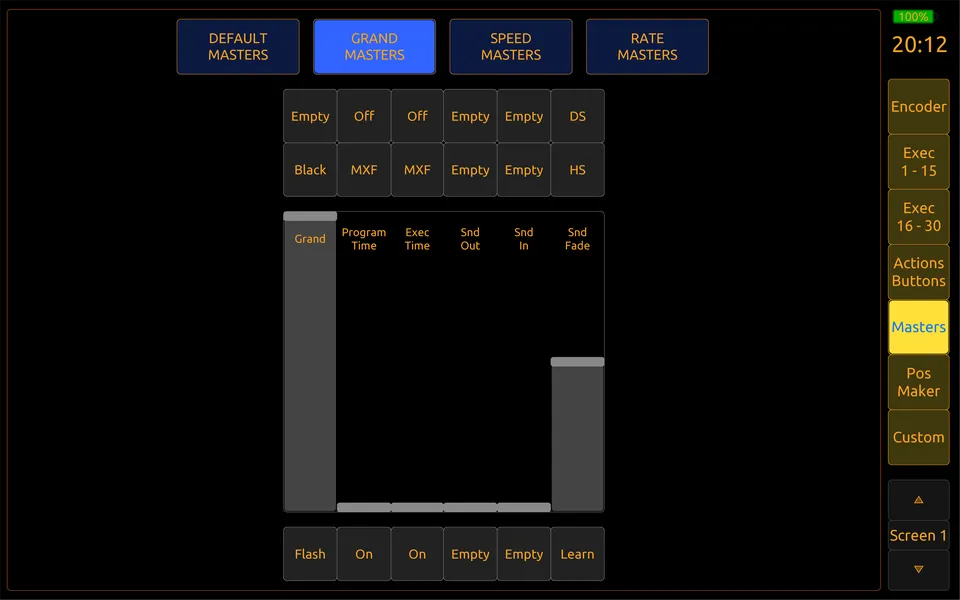
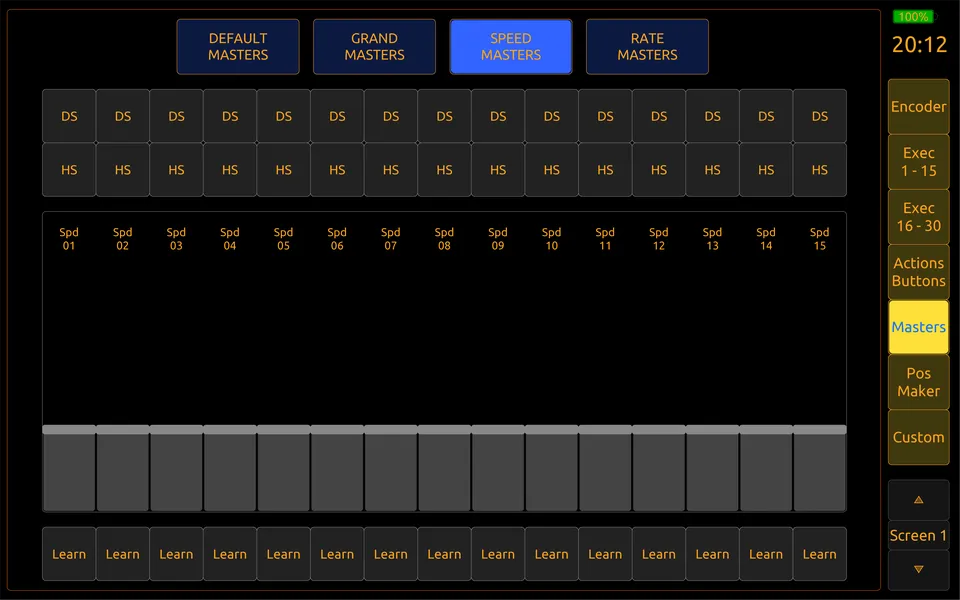
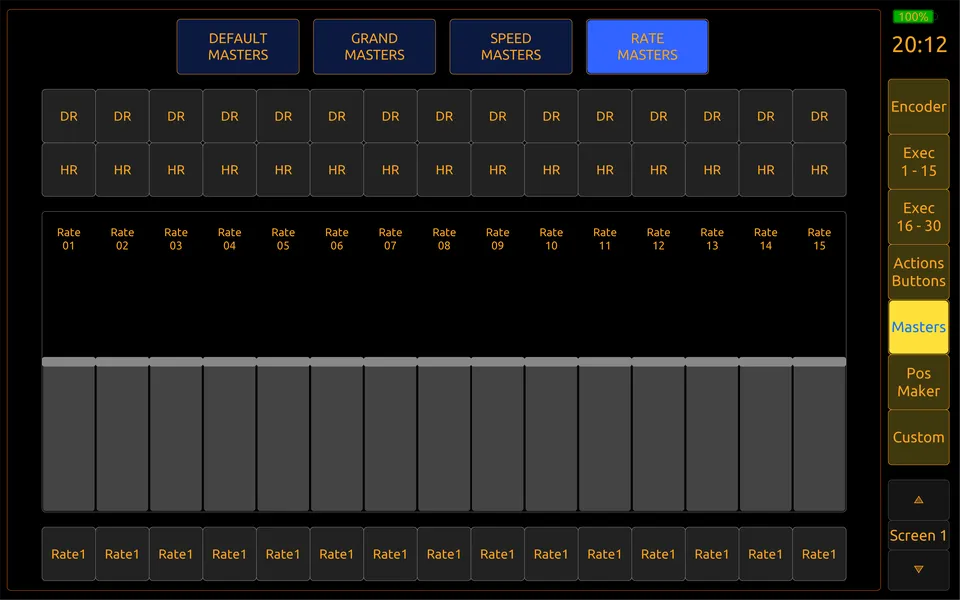
When you press Masters in the right navigation bar, a pop-up window opens that shows all Special Masters from MA2 in one place.
This window is almost identical to the MA2 Special Masters View on the console. It includes:
- All Default Masters
- All Grand Masters
- All Speed Masters
- All Rate Masters
Each master has its own fader and button, exactly like the console. This window just brings them into TouchOSC.
Assigning Masters to the 100 mm Faders (Main Page)
On the main interface you have two long physical-style faders:
- Fader 1 (left)
- Fader 2 (right)
You can assign each one to any Special Master from the popup.
How to Assign a Master:
- Tap the “Nipple” button next to the 100 mm fader
- The Masters popup opens
- Tap any master (for example Speed 1 or Grand Master)
- The fader is now assigned, no need to map anything in MA2.
Grand Master
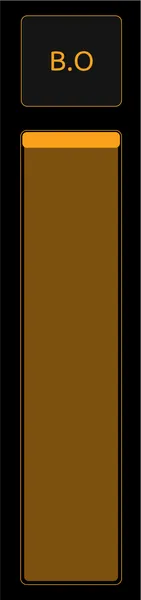
The Grand Master controls the overall intensity of all dimmable fixtures in the show.
It behaves exactly like the physical Grand Master on a real MA2 console:
- At 100 %, output is unchanged
- Lowering it reduces all dimmer values proportionally
- At 0 %, the entire stage goes black, regardless of what is in the Programmer or Executors
In this layout, you can control the Grand Master in three ways:
- From the main UI → Central area → Move the Grand Master slider directly
- From the Special Masters window → Inside the Masters popup → Move the Grand Master fader in the list of Special Masters
- From the 100 mm faders → Main UI (assignable faders) → Tap the nipple next to a 100 mm fader → Select Grand Master
The Grand Master value is always synced with MA2, but not between the different Grand Master controls inside TouchOSC. Only the MA2 value is authoritative.
Why the LUA Plugin Is Needed
GrandMA2 does not allow Special Masters (Speed, Rate, Grand Master, Program Time, etc.) to be controlled directly via MIDI.
So, when you run the included LUA plugin for the first time:
- It automatically creates hidden executor faders on Page 101+
- Each of those executors is assigned to a Special Master in MA2(example:
Assign SpecialMaster 1 At Executor 100.1) - Those executors are then controlled by TouchOSC
Everything is already routed, you only choose which Special Master to control from the popup.
A full explanation of the plugin will come in Section 4 – LUA Plugin.
Why Values Don’t Sync Between Popup and Main Faders
In earlier versions of the layout, the value of a Special Master was visually mirrored between:
- The 100 mm faders on the main screen, and
- The fader shown inside the Masters popup
That sync was removed on purpose.
2.5 Position Maker & Position Storing
The Position Maker is one of the most advanced parts of the layout. It lets you:
- Control Pan and Tilt using a virtual XY Pad / encoder wheel system
- Apply MAtricks, Align, Blocks, Wings, Flip exactly like on the console
- Quickly select fixture Groups
- Recall or store Position Presets (1–20) directly from the tablet
- Store positions live from the tablet using a dedicated workflow
This section explains how storing and logic work, and why some steps (like pressing Please) are required.
Real Trackball / Encoder Engine (Not “Pan +1”)
The Position Maker doesn’t use commands like Attribute "Pan" +5.
It sends actual encoder/trackball data to MA2 using internal functions like : gma.canbus.ball(x, y)
That’s the same message the full-size MA2 console sends when you move its physical trackball.
This matters because it means:
- Align (<, >, <>, ><) works as expected
- MAtricks (Wings, Blocks, Groups, Shuffle) affects distribution
- No numeric jumps or broken symmetry
- Fixture values respond like on a real desk
Interface Overview
When you open the Position Maker window, you’ll normally see :
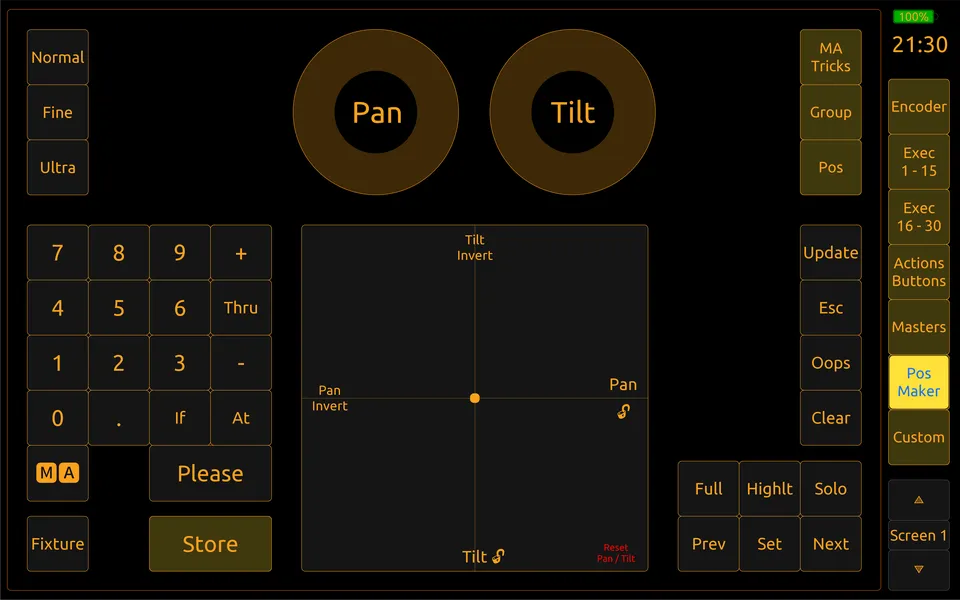
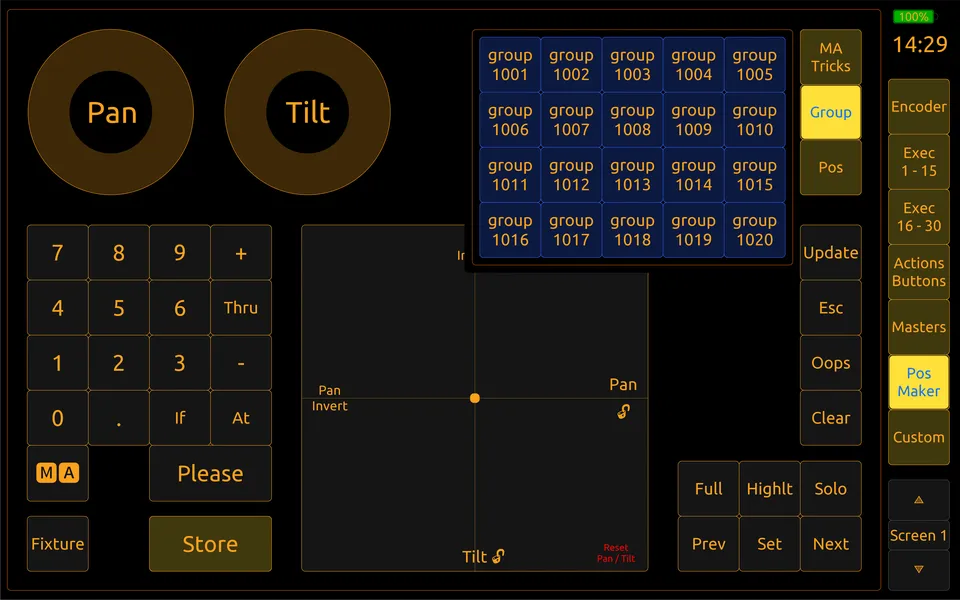
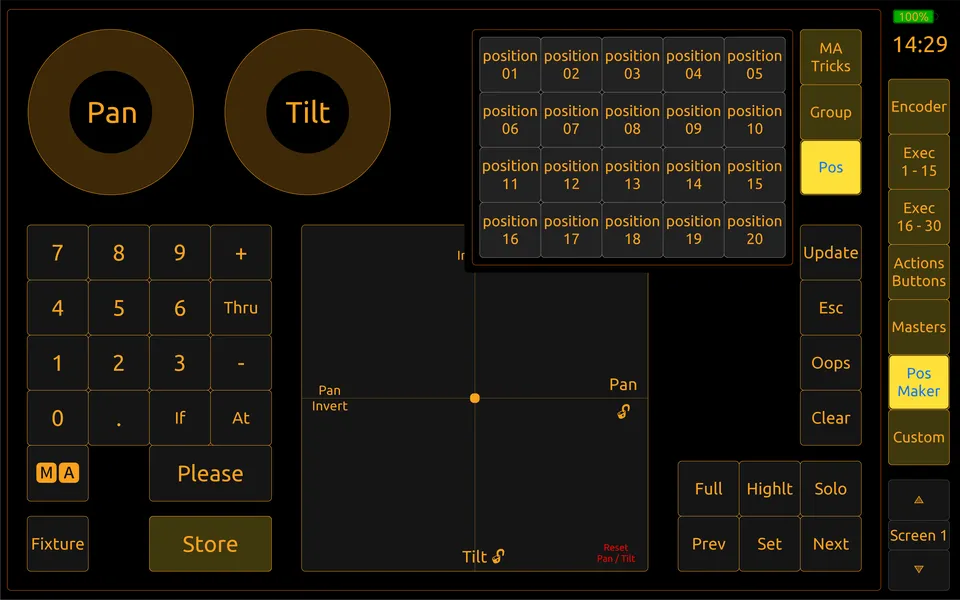
Groups + Position Recall
- Tapping any group selects fixtures in MA2, just like clicking a Group Pool button.
- Position tiles show Position 1 to 20 from MA2’s Position Pool.
How Position Storing Works
Storing positions from the tablet follows a fixed workflow. This is not a design choice, it is required because of how MA2 handles MIDI remotes.
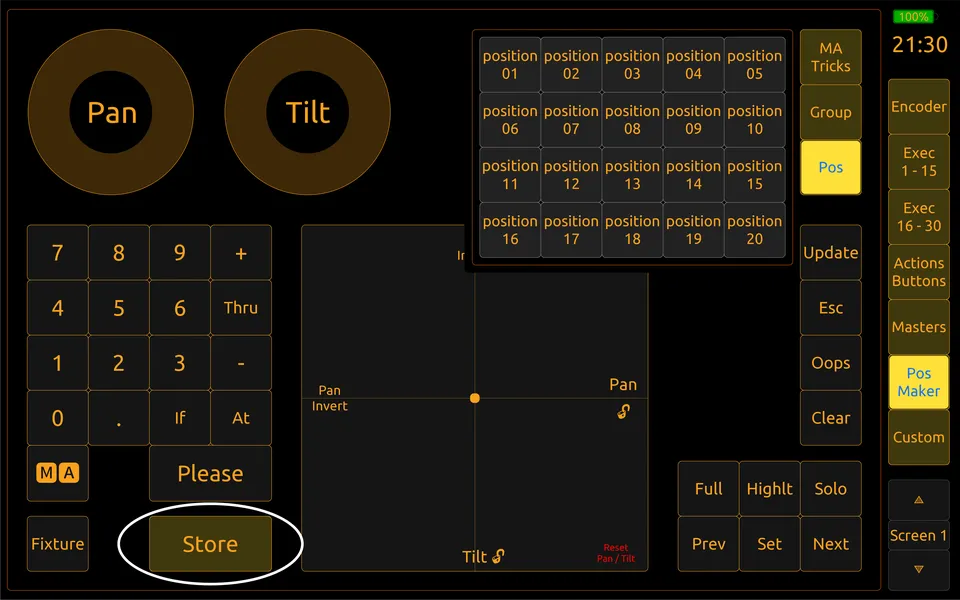
Storing a New Position (Empty Pool Item)
- Select fixtures
- Press Store
- Position tiles change to “Store Pos 01… Store Pos 02…”
- Tap a tile
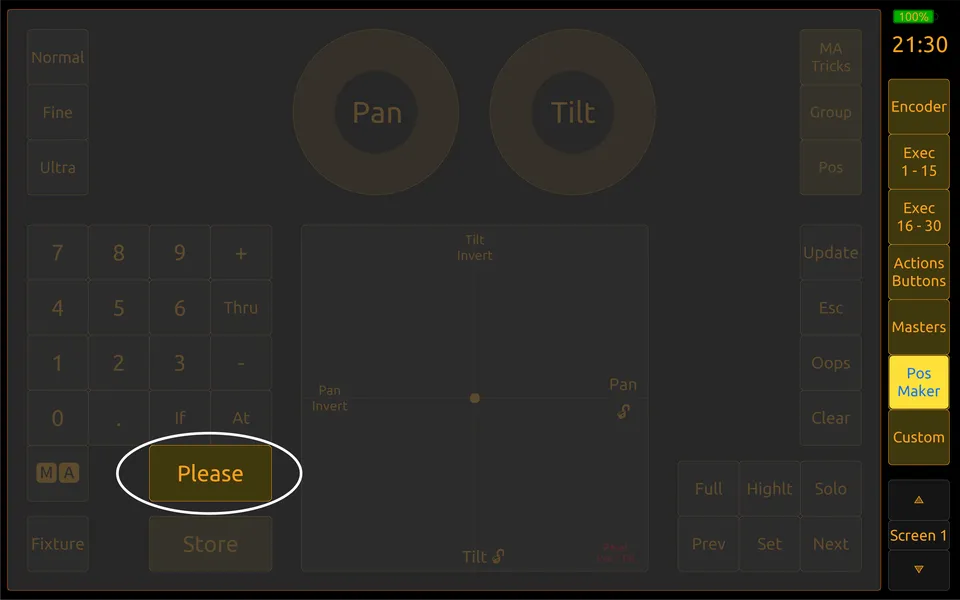
- Press Please→ Position is stored, tile returns to normal view.
Storing Over an Existing Position (Pool Item Already Has Data)
Normally on MA2, you would see a popup : Merge / Overwrite / Remove / Cancel
TouchOSC cannot interact with that dialog via MIDI remotes. So the layout skips it completely and:
- Always sends: Store → → Please
- MA2 defaults to Merge in this case
- Overwrite or Remove cannot be triggered from the tablet
To make sure the user always completes the required sequence, a grey blocking overlay appears. You must press Please to unlock the interface again.
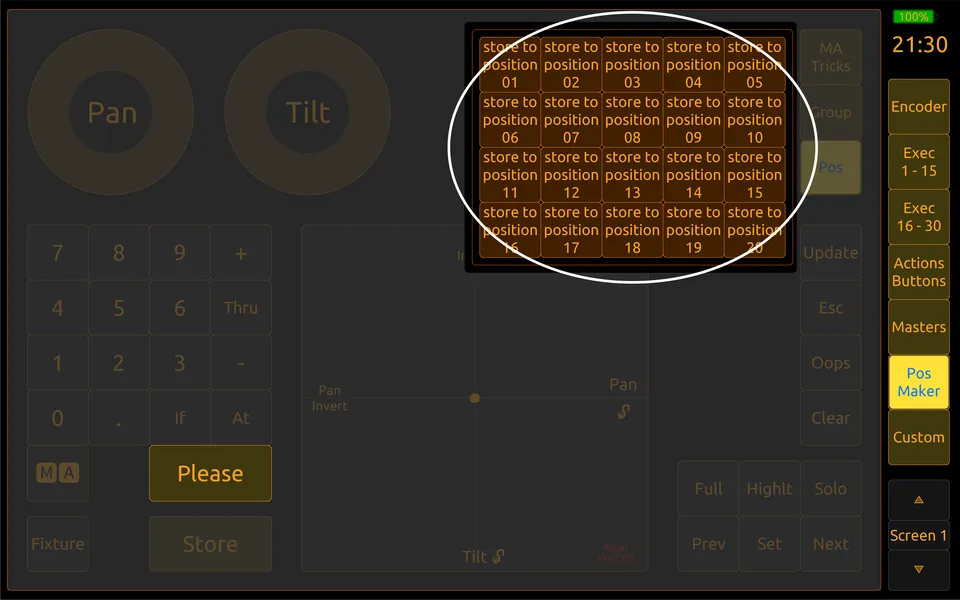
Why Not Offer Merge / Overwrite / Remove Choices?
- To let the user choose between Merge / Overwrite / Remove for 20 position tiles, the layout would need 60 additional MIDI Remote lines (3 actions × 20 tiles).
- Only 17 MIDI remotes are still available in grandMA2, the rest are already used by other parts of the layout.
- For this reason, the system uses the safest and most universal method: Merge only.
- This could be added in the future if enough users request it, but it would require removing some existing MIDI remotes (for FX, Groups, or other functions) to free the needed space.
MAtricks & Align
Because Pan/Tilt movements are done using real encoder/trackball input:
- Align modes (
<,>,<>,><) correctly distribute Pan/Tilt values across the selection - MAtricks functions (Wings, Blocks, Groups) all work as expected
- The behavior is 100% identical to a hardware console
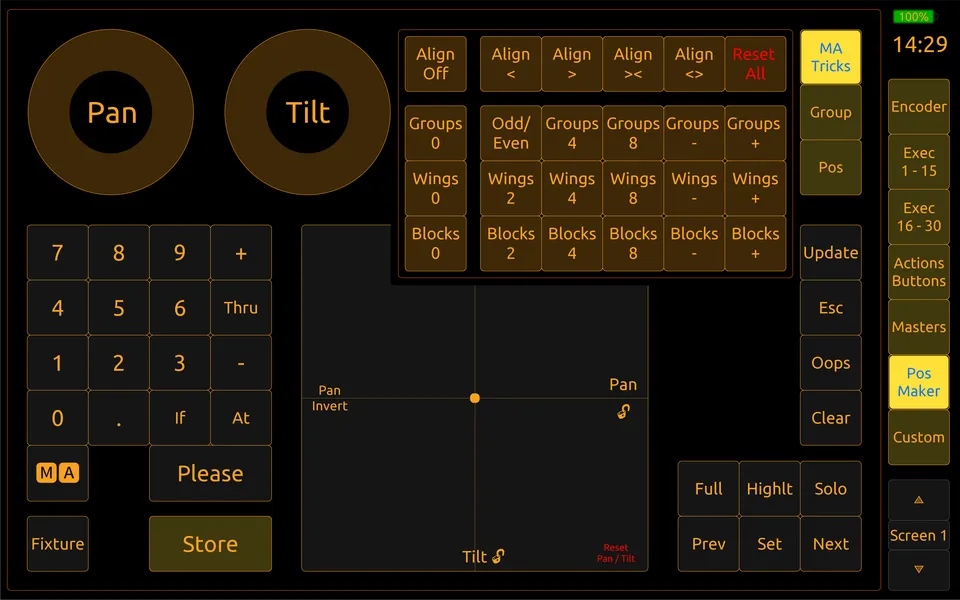
You can enable MAtricks directly from the MAtricks popup inside the Position Maker window.
A deeper explanation of MAtricks (how to use Wings, Blocks etc.) will be covered in Chapter 2.8.
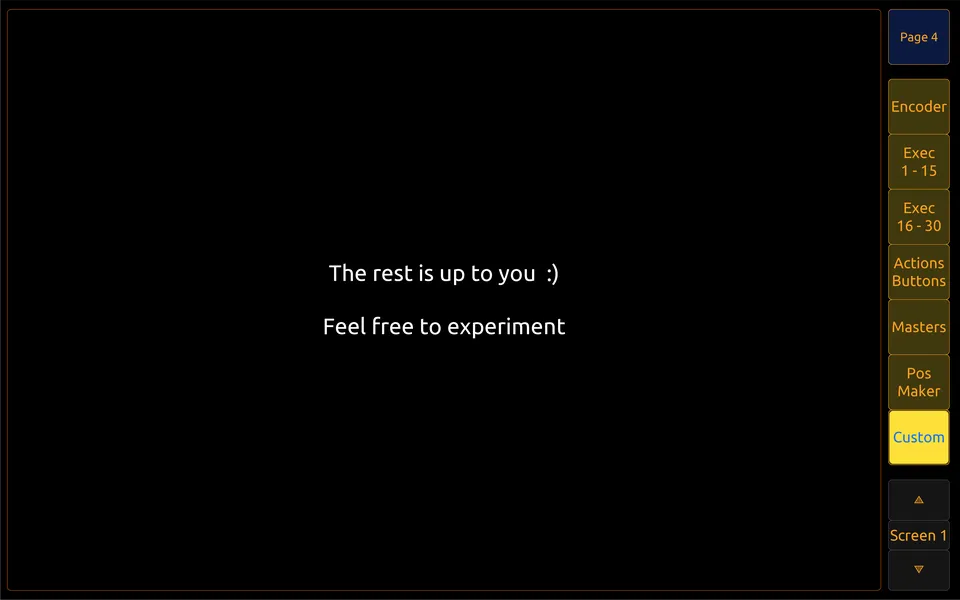
2.6 Custom Pages
The Custom Pages section is a safe space in the layout where you can design your own layouts of control, macros, MIDI triggers, FX pages, or any experimental interface, without breaking the rest of the template.
What’s Included by Default
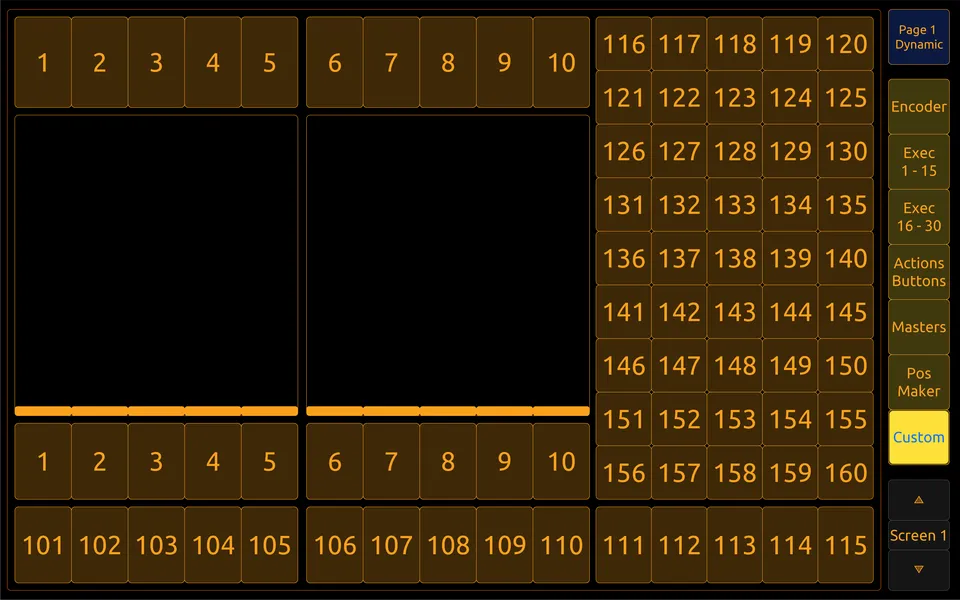
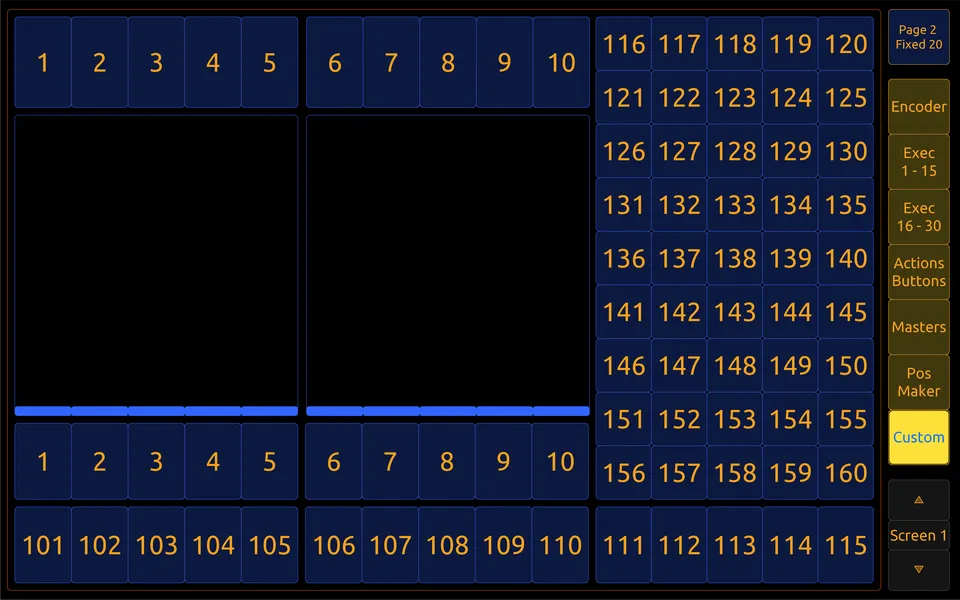
- Page 01 & 02 → Alternative layout to trigger executors/buttons (same logic as Exec pages, just a different arrangement).
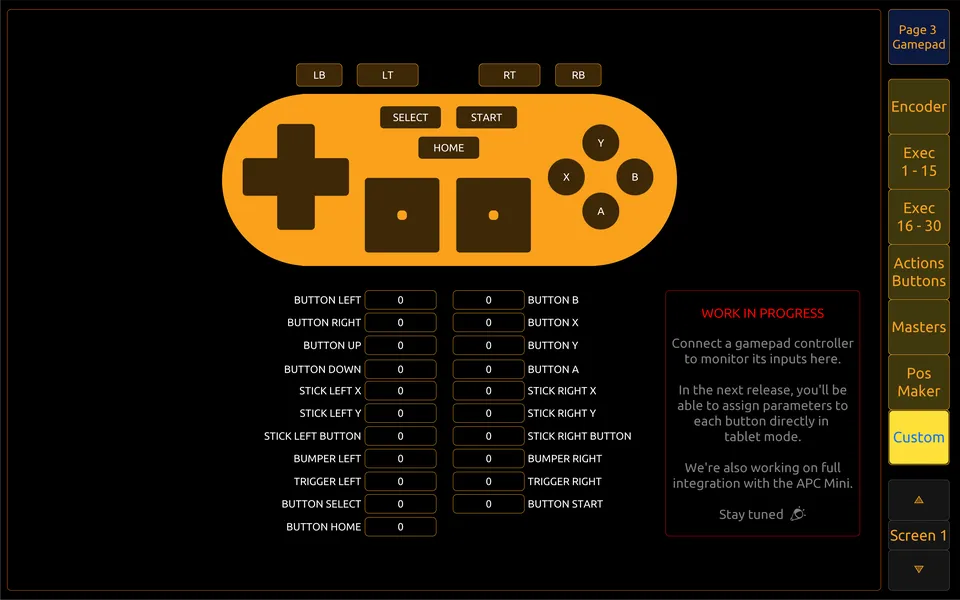
- Page 03 → Gamepad module. Work in progress. Will be detailed in Chapter 3.8.
- Page 04 → Completely empty. You can design your own layout here.
The system only shows one page at a time. You switch pages using the CUSTOM PAGE SWITCH button on the top right of the screen.
How to Add a New Custom Page
Object structure :
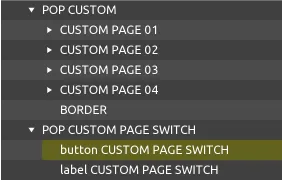
Step 1 : Duplicate a page
- In the editor: right-click
CUSTOM PAGE 04→ Duplicate - Rename the duplicated group to:
CUSTOM PAGE 05
Step 2 : Add it to the page-switch script
- Select
button CUSTOM PAGE SWITCH - Go to the script area of this object
- At the top of the script, you’ll see :
local groupsToShow = {"CUSTOM PAGE 01", "CUSTOM PAGE 02", "CUSTOM PAGE 03", "CUSTOM PAGE 04"} - Add your page :
local groupsToShow = {"CUSTOM PAGE 01", "CUSTOM PAGE 02", "CUSTOM PAGE 03", "CUSTOM PAGE 04", "CUSTOM PAGE 05"} - The button will now cycle through all five pages.
Important Notes
- Do not rename the root group
POP CUSTOMor the buttonCUSTOM PAGE SWITCH - You can rename the individual pages, but the script names must match exactly
Adding Your Own Controls
To create a custom layout of executors, macros, MIDI buttons, etc., the recommended workflow is:
- Copy an existing button or encoder from another part of the layout
- Paste it inside your custom page
- Only modify the label or the command/MIDI note
Why this is better than creating a new object from scratch:
All buttons in this layout already contain:
- MIDI note and feedback routing
- LED color logic & touch-state feedback
- Scripts for visibility + release behaviour
- Correct scaling and panel layout
Reusing objects means you don’t have to manually set any of that again. This avoids mistakes and saves a lot of setup time
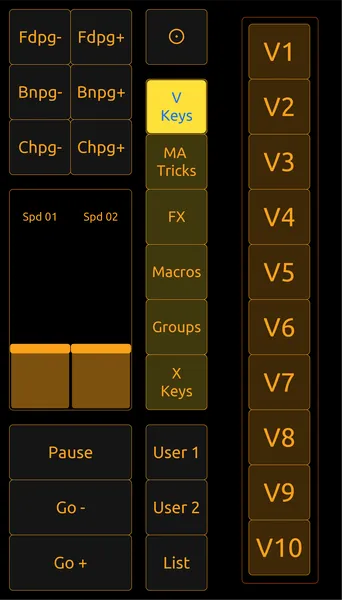
2.7 V-Keys
The V-Keys are located on the right side of Screen 2 in the grandMA2 interface and act as shortcut buttons for Views and ViewPages.
In this layout, you get the same 10 buttons : V1 → V10
They behave exactly like on the console, whatever you assign in MA2 is what the button will recall.
Function in MA2
As defined in the official MA2 documentation :
- Tap V1 → recalls the View assigned to ViewButton 1
- Hold MA + tap V1 → recalls the corresponding ViewPage (if you have multiple pages of views)
Important Notes
- The layout does not store or assign Views, that is done in MA2.
- Any View or ViewPage you assign on the console or onPC will be triggered from the tablet.
2.8 MAtricks
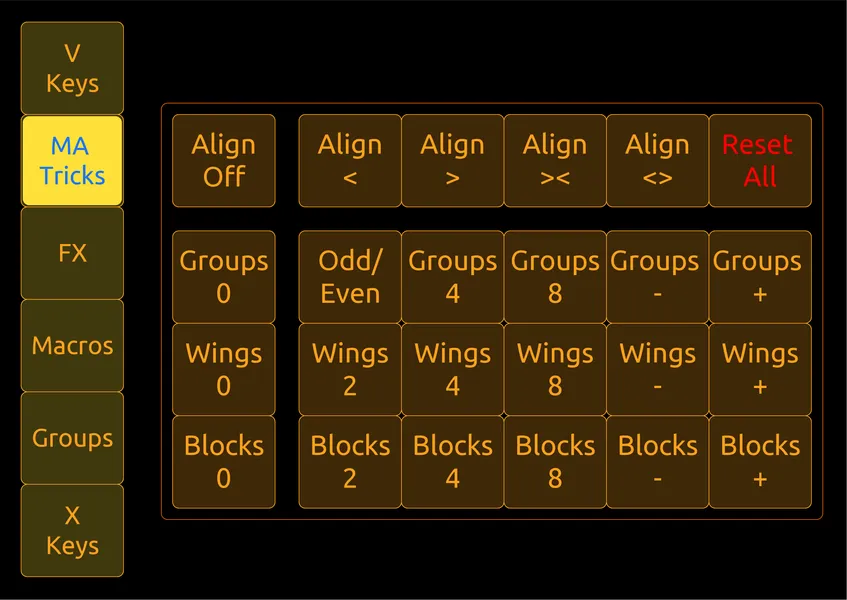
The MAtricks page gives you direct access to the most common MAtricks parameters used when distributing values across a fixture selection (Wings, Blocks, Groups, Align, Odd/Even…).
This is the same system used on the grandMA2 console. All commands are sent as real MA2 commands or MIDI remotes.
Available Controls
Align (<, >, <>, ><, Off): Affects how values are distributed across the selectionGroups (0 / 4 / 8 / + / -): Splits the selected fixtures into groups before values are appliedOdd/Even: Limits the selection to only odd or only even fixturesWings (0 / 2 / 4 / 8 / + / -): Mirrors values symmetrically across the fixture selectionBlocks (0 / 2 / 4 / 8 / + / -): Applies identical values to fixtures grouped in blocks of 2, 4, 8, etc.Reset All: Resets all MAtricks settings (Wings, Blocks, Groups, Align, etc.) back to default
Fully Compatible with Encoders & Trackball
As explained in the Position Maker section:
- All PAN / TILT movement in this layout is generated using MA’s real encoder/trackball messages.
- Because of this, MAtricks and Align behave 100% like on a hardware console, values are distributed according to selection order, groups, wings, blocks, etc.
2.9 Effects
The Effects page gives you direct access to the Effect Pool using preconfigured MIDI Remote commands inside grandMA2.
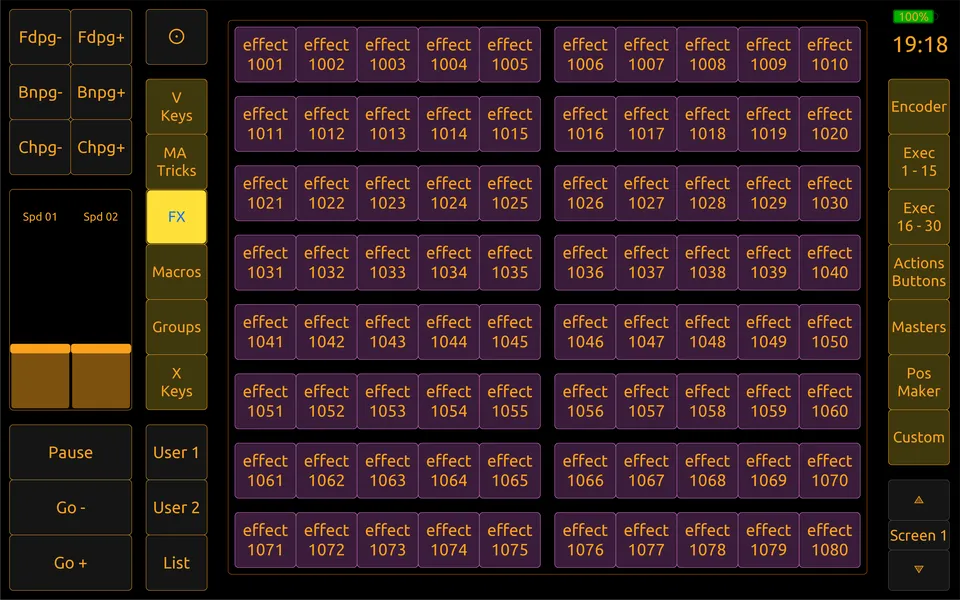
Every FX button in the layout is already linked to a MIDI Remote entry. This means :
- You don’t need to create new MIDI Remotes
- You only edit the command line if you want the button to trigger a different effect
- All routing, feedback, colors, and button logic remain fully functional
Do not delete or reassign the MIDI channel / button mapping
Default Behavior
Each FX button is configured to send : Toggle Effect 1001
This behaves like pressing an Effect Pool tile on the console
- If the effect is OFF → it starts
- If the effect is running → it stops
The layout includes buttons for FX 1001 to FX 1080. These are empty slots in the Effect Pool. You still need to store your own effects into those pool IDs in MA2.
Editing What a Button Triggers
To change what an FX button does, go to : Setup → Remote Inputs → MIDI Remotes
Only edit the Command column
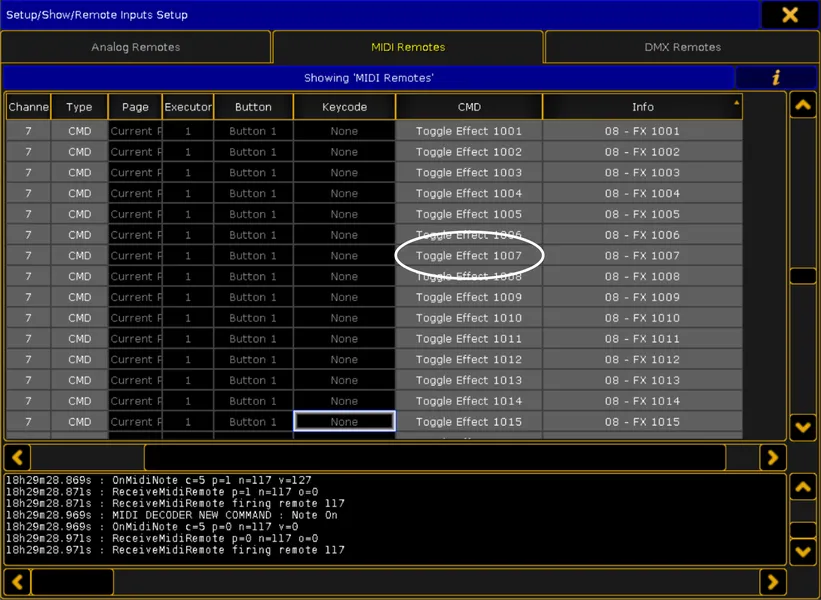
You can use commands like :
- Go Effect 201
- Off Effect 1001
- Reload Effect 1001
Updating the Label in TouchOSC
If you change the command or effect number, you can update the button’s text :
- On TouchOSC Editor → Click the label on top of the button → Change Text Label
- On the tablet → Activate Edit Mode → Tap the Button → Rename it Directly
See the Edit Mode Chapter for details.
2.10 Macros
The Macros page gives you access to Macro Pool objects using preconfigured MIDI Remote commands inside grandMA2.
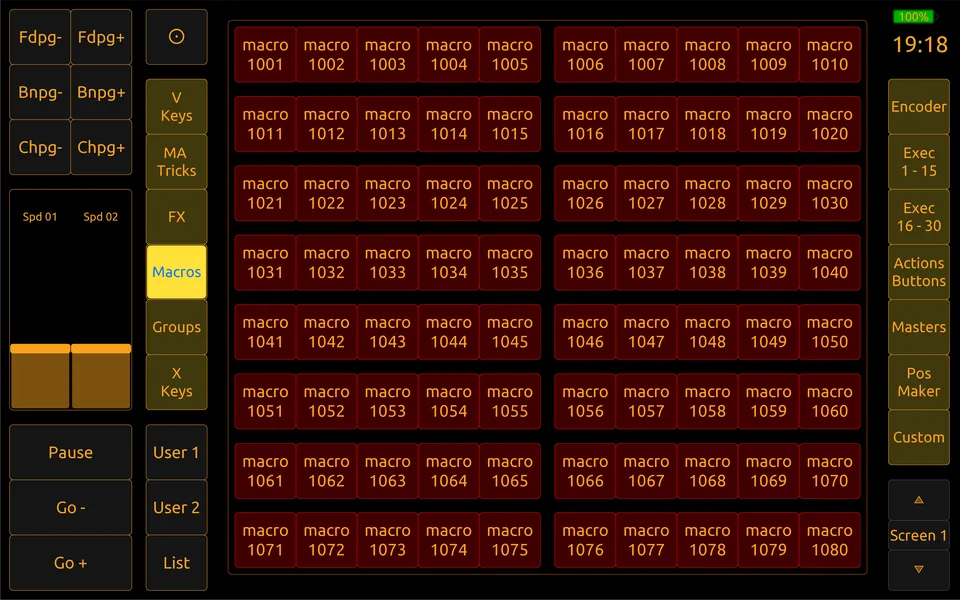
Each button you see (Macro 1001 → Macro 1080) is already linked to a MIDI Remote entry, so :
- You don’t need to create new MIDI remotes
- You only edit the command line to change which macro is triggered
- All routing, feedback and TouchOSC mapping stay intact
Do not delete or reassign the MIDI channel / button mapping
Default Behavior
By default, every button is set to execute : Go Macro 1001
The layout includes buttons for Macro 1001 to Macro 1080. These are empty slots in the Macro Pool. You still need to store your own macro content into those pool IDs in MA2.
Editing What a Button Triggers
If you want a different macro, simply modify the command field:
On MA2 go to : Setup → Remote Inputs → MIDI Remotes
Only edit the CMD column
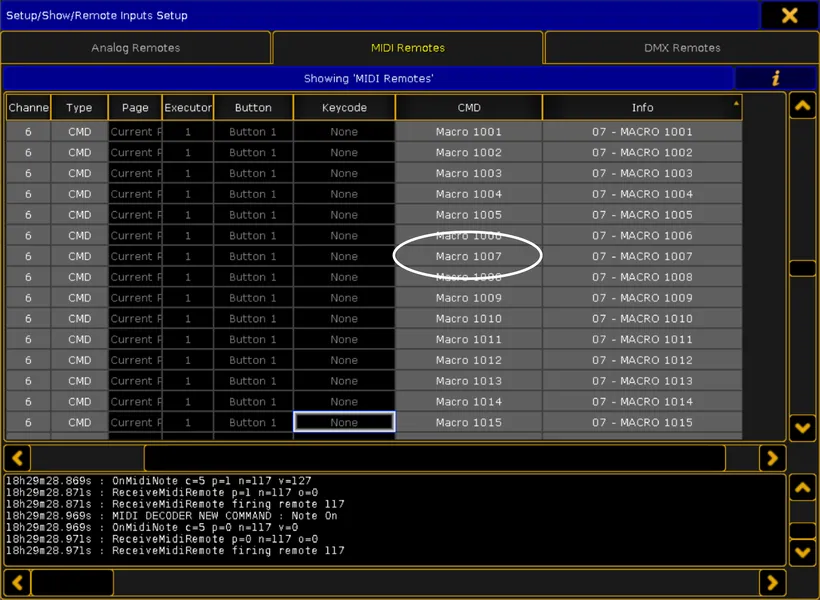
You can use commands like :
Go Macro 201Off Macro 1001
Updating the Label in TouchOSC
After changing the macro number, rename the button so it matches :
- On TouchOSC Editor → Click the label on top of the button → Change Text Label
- On the tablet → Activate Edit Mode → Tap the Button → Rename it Directly
See the Edit Mode Chapter for details.
2.11 Groups
The Groups page gives you access to Group Pool objects on the console using preconfigured MIDI Remote commands.
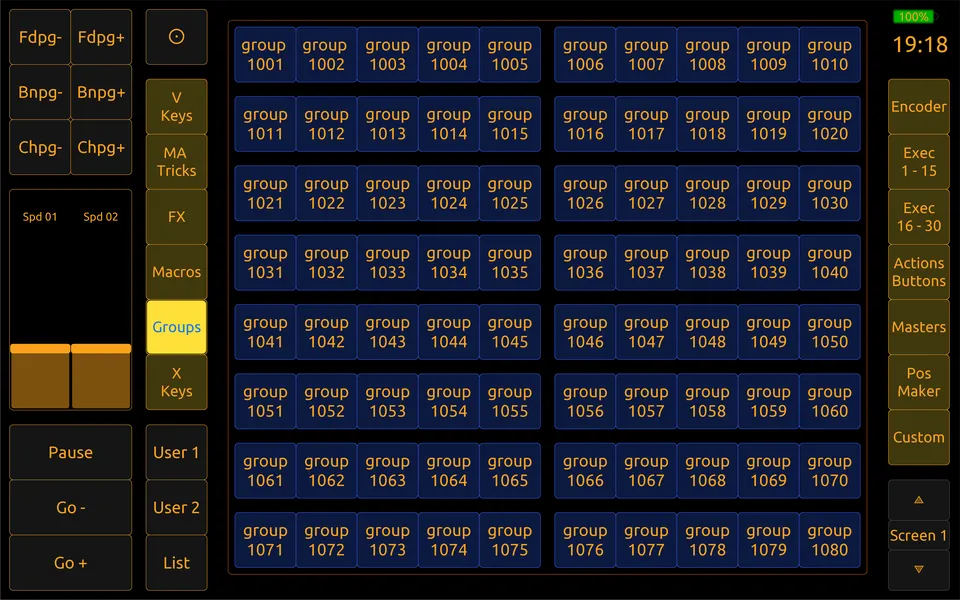
Each button (Group 1001 → Group 1080) is already linked to a MIDI Remote line inside grandMA2, so :
- You don’t need to create new MIDI remotes
- You only edit the command field if you want a different group number
- All MIDI routing, feedback, button colors and mapping stay functional
Do not delete or change the MIDI channel, page or button mapping.
Default Behavior
By default every button sends : Group 1001
This behaves exactly like tapping a Group Pool button on the console :
→ It selects that group of fixtures in the programmer.
The layout includes buttons for Group 1001 to Group 1080. These are empty pool slots, you still need to store your own groups into those pool IDs in MA2.
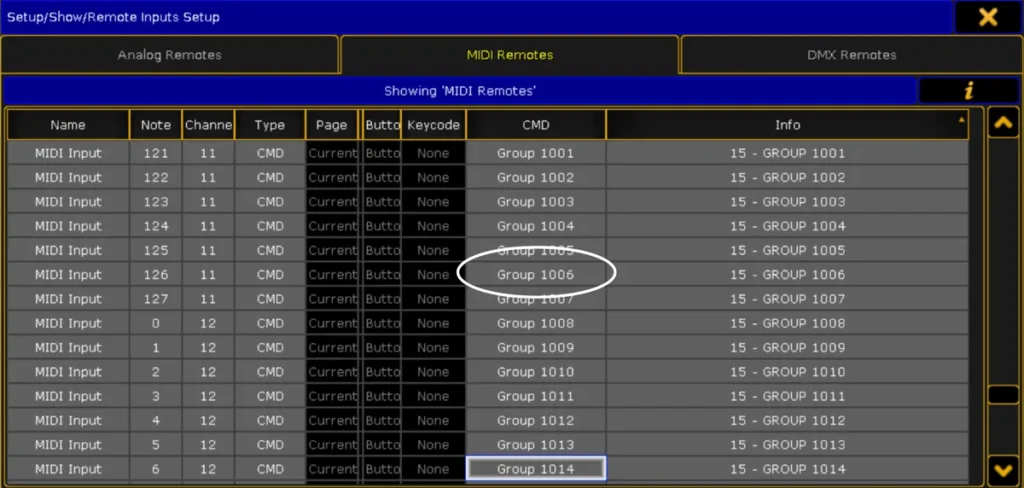
Editing Which Group a Button Selects
If you want a button to call another group :
On MA2 go to : Setup → Remote Inputs → MIDI Remotes
Only edit the CMD column
Updating the Label in TouchOSC
To keep things clear, rename the button label to match the group number you’re using :
- On TouchOSC Editor → Click the label on top of the button → Change Text Label
- On the tablet → Activate Edit Mode → Tap the Button → Rename it Directly
See the Edit Mode Chapter for details.
2.12 X-Keys
The X Keys page in this layout gives you quick access to the 20 X-Key buttons (X1 → X20). Just like on the right side of Screen 1 on the MA2 console.
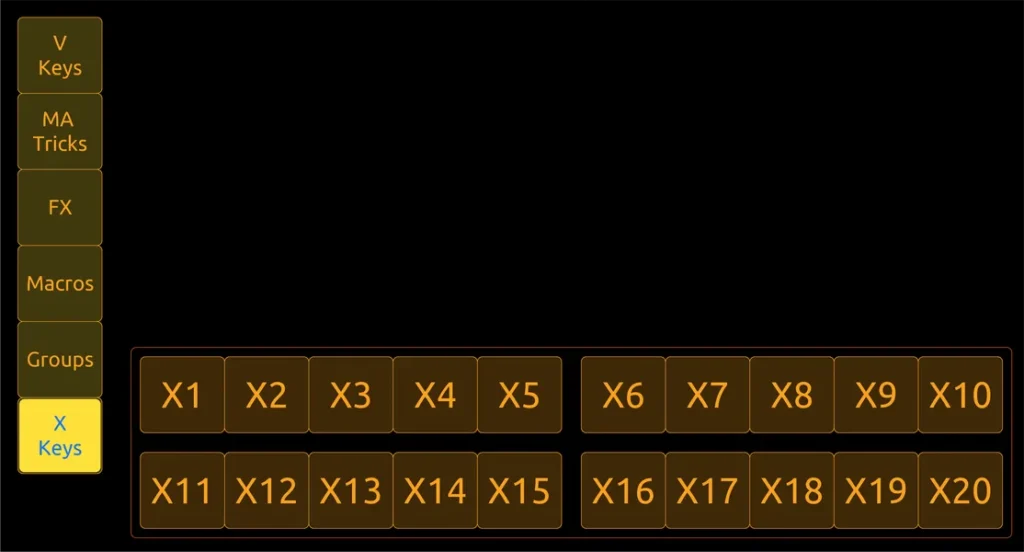
How They Work in This Layout
- The buttons X1 to X20 are already placed and mapped to MA2.
- They are not assigned to anything by default, it’s up to you to decide what they trigger.
- Typical use cases:
- Start/stop sequences, temp, solo, flash…
- Call views or view pages
- Trigger macros or commands
Just assign them directly in MA2
Section 3 – Extended Features
3.1 Simple Interface
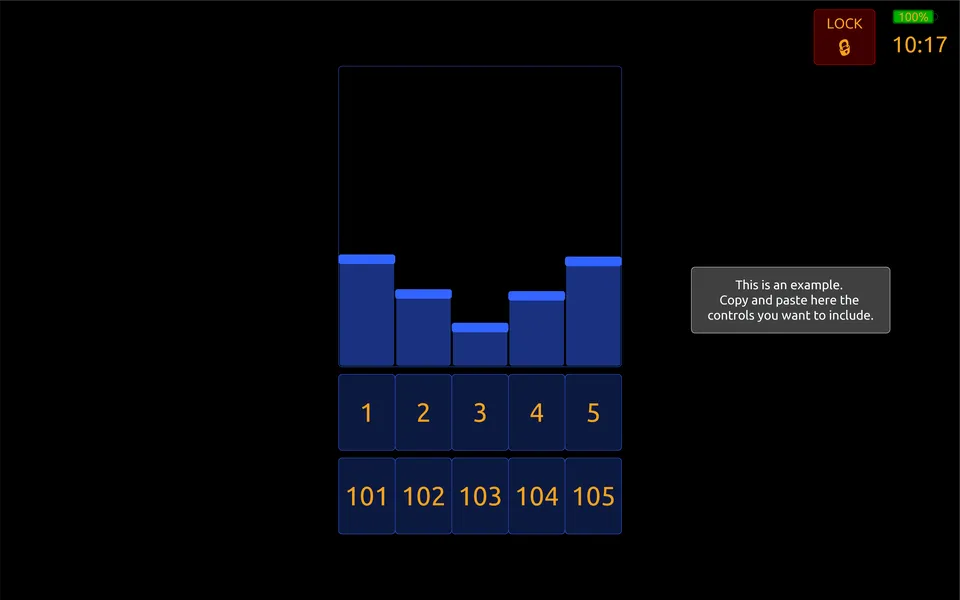
The Simple Interface is a minimalist and isolated control page designed for non-technical users, venue staff, or backup safety use.
It works similarly to a Custom Page, but is directly integrated into the Lock Screen system and follows special behavior.
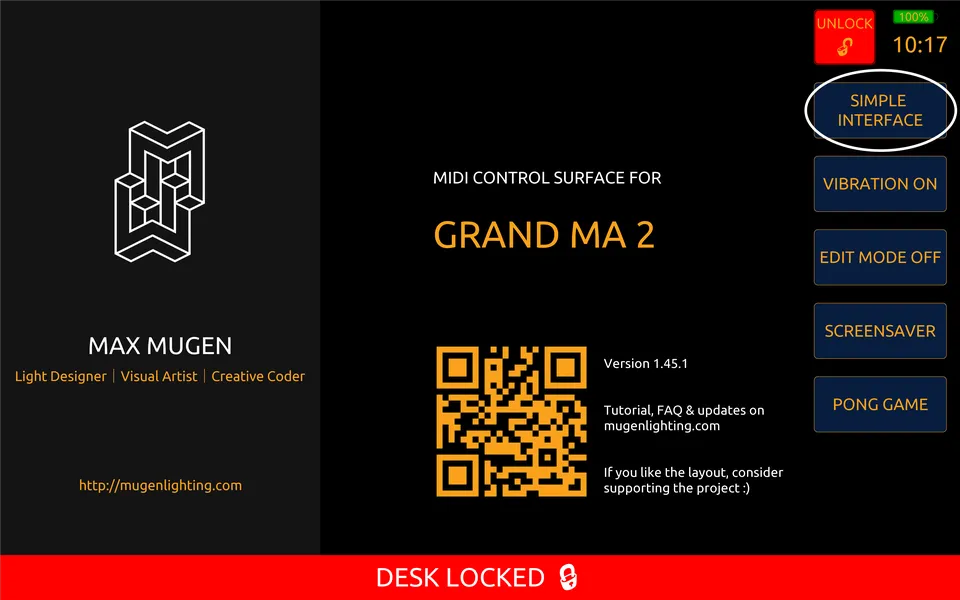
How It Works
- Press LOCK → everything is disabled
- Press SIMPLE INTERFACE → desk unlocks, but only this page is accessible
- The rest of the layout remains hidden (no encoders, no execs, no macros, no edit mode)
- To exit → tap Lock again, then Unlock to return to full layout
Purpose
This mode exists because users needed a way to:
- Let staff, artists, or venue operators play cues safely without accessing programming tools
- Provide a “play-only” remote mode during rehearsals or open venue operation
- Prevent accidental programming, storing, deleting, or clearing during live shows
- Keep a minimal backup interface in case the main layout must stay locked
Adding Your Own Controls
As stated in the chapter about Custom Pages, to create a custom layout of executors, macros, MIDI buttons, etc., the recommended workflow is:
- Copy an existing button or encoder from another part of the layout
- Paste it inside your custom page
- Only modify the label or the command/MIDI note
Why this is better than creating a new object from scratch:
All buttons in this layout already contain:
- MIDI note and feedback routing
- LED color logic & touch-state feedback
- Scripts for visibility + release behaviour
- Correct scaling and panel layout
Reusing objects means you don’t have to manually set any of that again. This avoids mistakes and saves a lot of setup time
Important Notes
- MIDI output is re-enabled when entering Simple Interface, but only from the controls you placed there
- Everything else (Encoders, Exec Pages, Action Buttons, Position Maker, MAtricks, etc.) stays hidden and disabled
- Users in this mode cannot access Edit Mode, Store, or clear the programmer (unless you place those buttons yourself)
- If you need multiple pages or more logic, use Custom Pages (Section 2.6) instead
3.2 Vibration Module
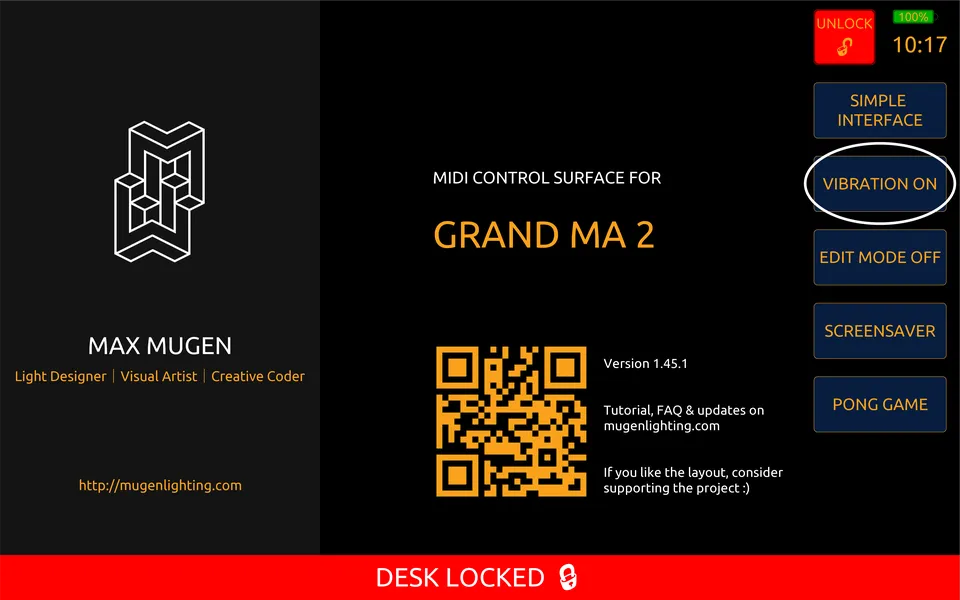
Some buttons in the layout provide haptic feedback (vibration) when pressed. This adds a more physical feel when triggering important functions.
The vibration is generated locally on your device via TouchOSC, it is not sent to or processed by grandMA2.
How It Works
- Buttons that support vibration include a built-in script.
- When pressed, this script checks if the Vibration Master toggle is enabled.
- If it is, and the device supports haptic feedback, TouchOSC triggers
vibrate().
Global Vibration Switch
Located inside the Lock Screen utility panel.
- ON (default) → vibration is active on all buttons that support it
- OFF → disables vibration everywhere in the layout, even if scripts are present
Notes & Limitations
- Android phones/tablets → supported
- iPhones → supported
- iPads → no vibration hardware → no feedback possible
Custom Haptic Behaviors
More complex vibration logic is also possible (double-tap, long-press, vibration on release, etc.) this just requires additional scripting.
Feel free to contact me if you want help adding it.
3.3 Edit Mode
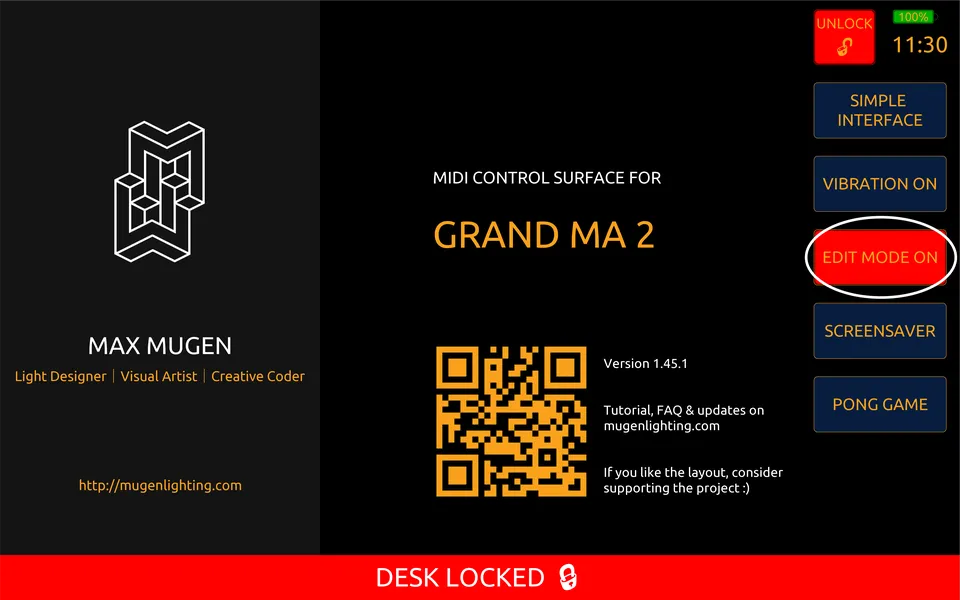
Edit Mode lets you customize the TouchOSC layout directly on your device. No computer or TouchOSC Editor required.
You can change button colors, rename labels, and personalize FX, Macros, Groups, Positions, and Executors on fixed pages, plus a few other UI elements.
Edit Mode lives behind the Lock Screen so you cannot trigger it by accident during a show.
What Edit Mode Does
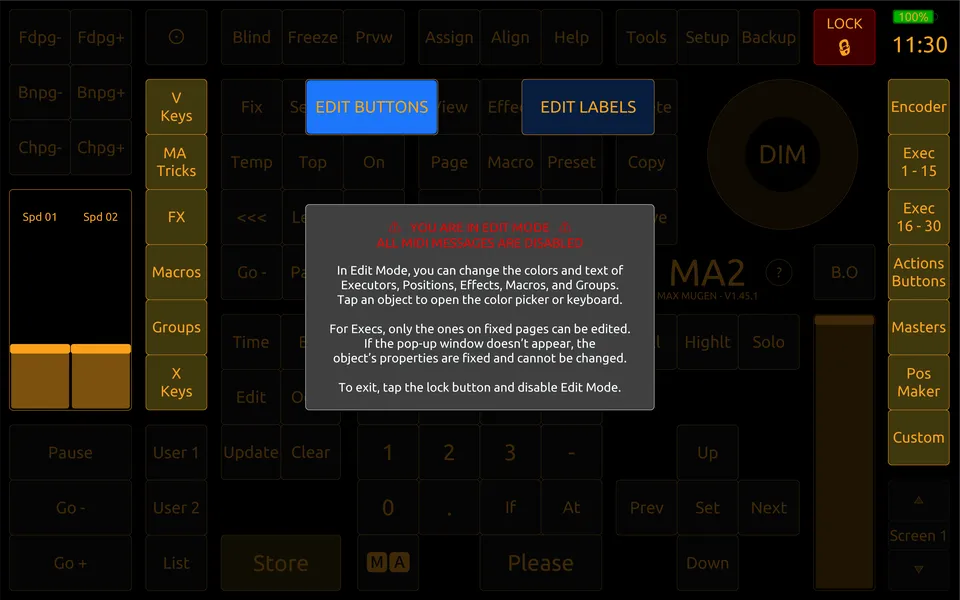
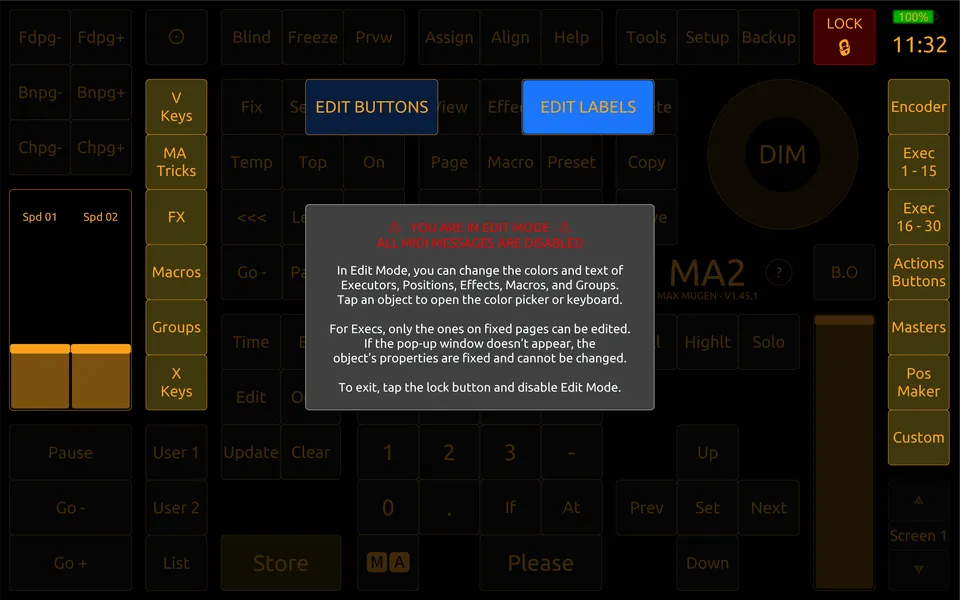
While active, Edit Mode :
- Lets you edit button colors or rename labels
- Opens the Color Picker for buttons or the Keyboard for labels automatically
- Mutes all MIDI to grandMA2 so tapping cannot trigger anything live
- Saves changes into the
.toscfile immediately - Requires no reload
How to Use It
- Unlock the layout if locked
- Tap EDIT MODE ON on the Lock Screen
- Choose one option
- EDIT BUTTONS → button color → Color Picker
- EDIT LABELS → text / captions → Keyboard
- Tap any editable object (FX, Macro, Group, Position, Exec on fixed pages)
- Apply color or rename
- Tap Lock, then turn Edit Mode OFF to return to normal operation
Edit Buttons Mode – Color Picker
Tapping an editable button opens the Color Picker window.
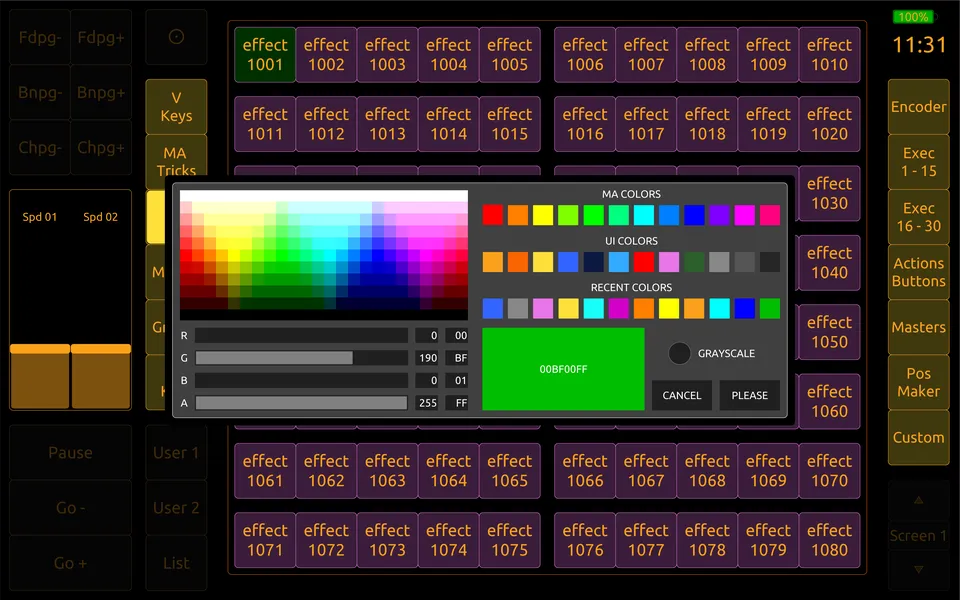
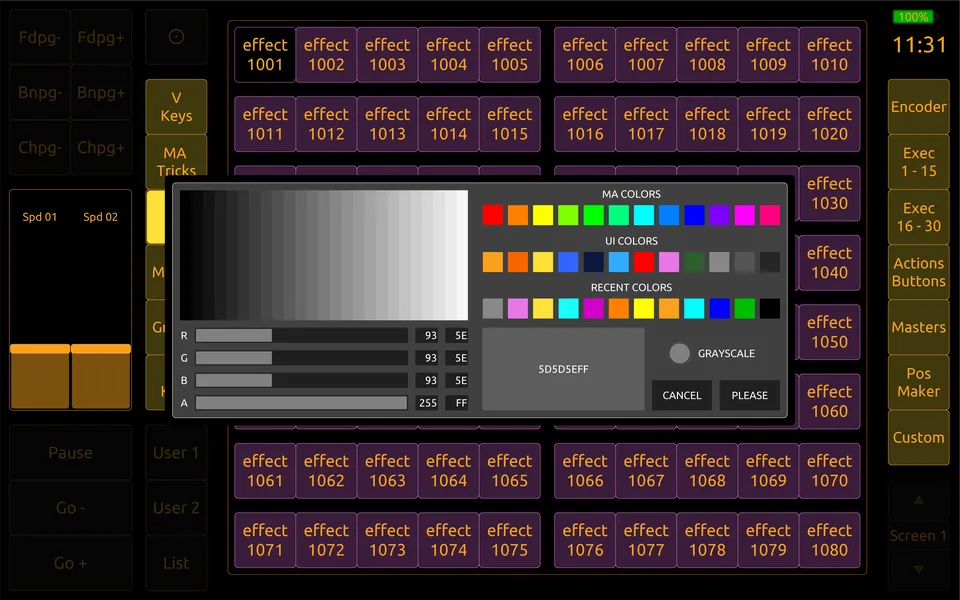
What you get :
- Full color spectrum to pick any hue
- RGBA sliders for precise values (0–255)
- MA Colors that mirror the grandMA2 palette
- UI Colors that match this layout’s default theme
- Recent Colors that update automatically with your last choices
- Grayscale toggle for a neutral monochrome set
Press PLEASE to apply or CANCEL to exit.
Edit Labels Mode – Label Renaming
When you select Edit Labels, you can rename buttons and tiles such as FX, Macros, Groups, Positions, and more.
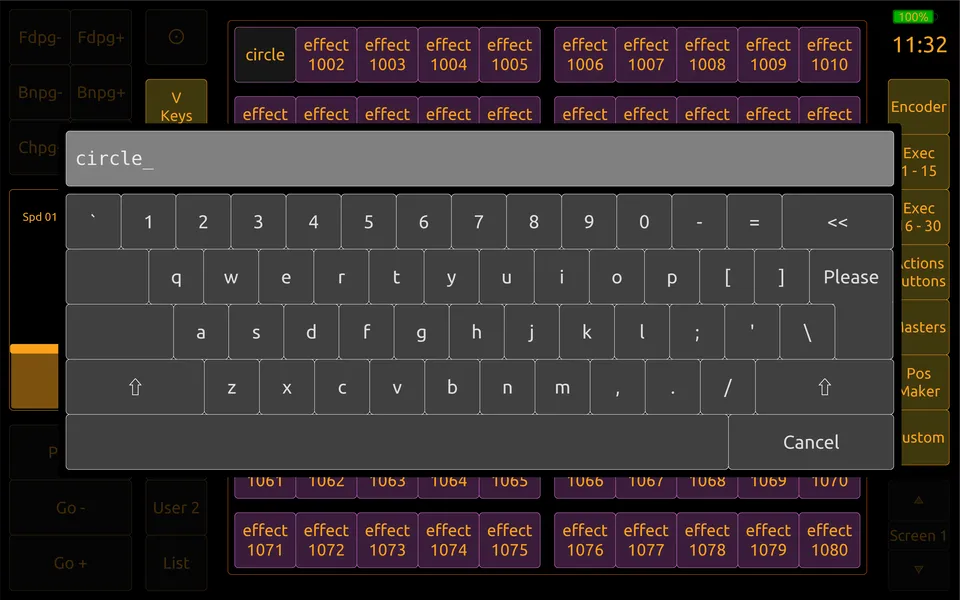
How it works :
- Enter Edit Mode → Edit Labels
- Tap a label → the on-screen keyboard appears
- Type the new name → tap Please
- The label updates immediately
Press PLEASE to apply or CANCEL to exit.
Notes :
- This updates only the TouchOSC label, not the object name in grandMA2
- Only items I marked as editable will open the keyboard
- Perfect for “effect 1001” → “Circle Dimmer” type changes
What You Can Edit
You can edit :
- Executors on fixed pages (text + color)
- Positions (text + color)
- Effects (text + color)
- Macros (text + color)
- Groups (text + color)
- The two 100 mm faders (color only)
Why It Exists
- Rename and recolor quickly during rehearsals or festivals
- Match button colors to looks, positions, or rig sections
- Keep touring rigs readable by adapting names per venue
- Work directly on the tablet without opening a laptop or the TouchOSC desktop app
- Safe editing : MIDI is fully disabled while you edit
If you need additional editable areas (views, more executors, custom modules), send me an email. This module is already heavy, so I unlock extra controls on request.
3.4 Screensaver
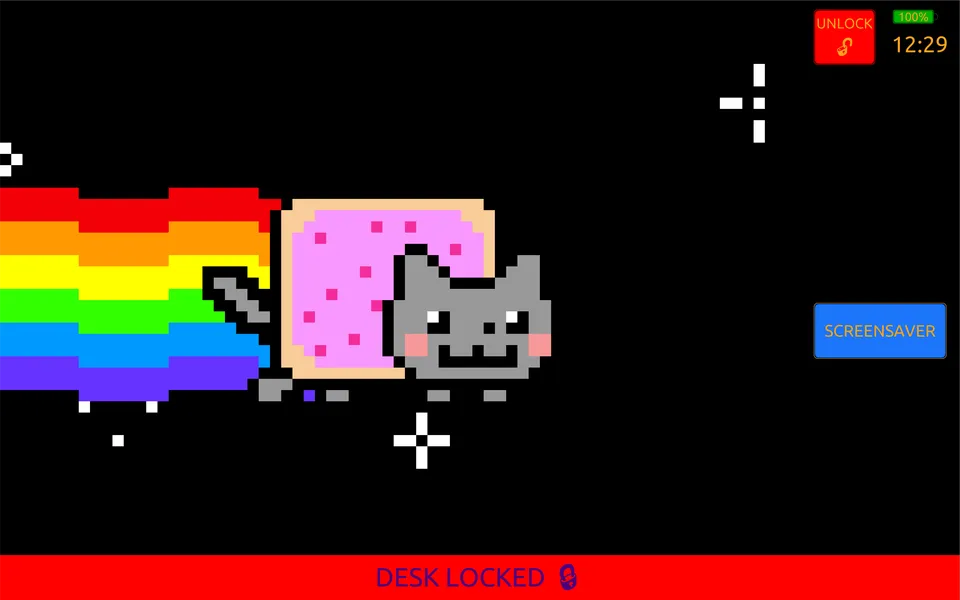
The Screensaver is an Easter egg module inside the layout. While not essential for programming, it serves as a technical demonstration of TouchOSC’s animation capabilities (and provides a visual break during long sessions).
What It Does
- Press SCREENSAVER and the entire interface switches to a fullscreen animated Nyan Cat.
- All MIDI output is paused, nothing is sent to MA2 while the screensaver is active.
- The layout stays protected behind the Lock Screen.
Why It Exists
Just because :
- I wanted to see if TouchOSC could handle animation, timing, movement… and yes, it can.
- It makes me smile, and during long nights of programming, that’s a valid feature.
Performance & Safety
- When you exit the screensaver, all animations and scripts stop automatically.
- No background CPU usage, no hidden processing.
- MIDI stays blocked until you manually unlock and return to the main interface.
- The screensaver is completely isolated from MA2 and cannot trigger cues or commands. (Well, it could ! )
3.5 Pong Game
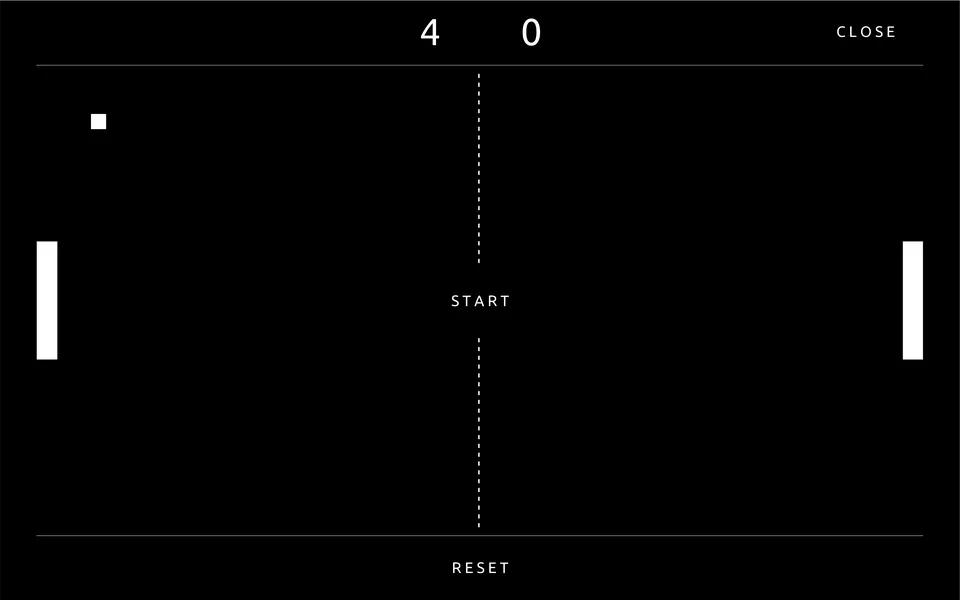
This layout includes a fully working Pong game built directly in TouchOSC. It was originally developed as a complex scripting challenge to test multitouch capability and physics limits within the app, and was left in the final build as a bonus module.
What It Does
- Opens a fullscreen Pong game inside the layout
- Includes:
- Moving ball & collision physics
- Left & right paddles
- Score counter
- Start, Reset, and Close buttons
Completely isolated from MA2
Why It Exists
- Purely for fun (and for my sanity while developing this layout)
- A tech experiment to push TouchOSC beyond UI buttons
- A good example of multitouch control, real-time redrawing & animation in TouchOSC
- Provides a technical demonstration of real-time redrawing in TouchOSC.
Background
The game is based on the original “Pone For Ong” example included with the TouchOSC software.
I took that base and modified and expanded it, adding:
- Dual paddles with true multitouch support
- Start / Stop controls with proper visibility and game state management
- Adaptive speed and spin physics based on where the ball hits the paddle
- Randomized bounce variation for more natural gameplay
- Fully isolated system.
Performance & Safety
- When you close the Pong window, the game loop fully stops
- No scripts or timers run in the background
- CPU and memory usage return to normal immediately
- It never controls MA2, triggers cues, or affects your show data.
3.6 Long Press Commands
Some buttons in the layout have dual functionality, they perform one command on a short tap, and another command when held longer.
This allows a single control to trigger two different actions depending on how you interact with it.
Only a few essential buttons use this feature, no global expansion is planned.
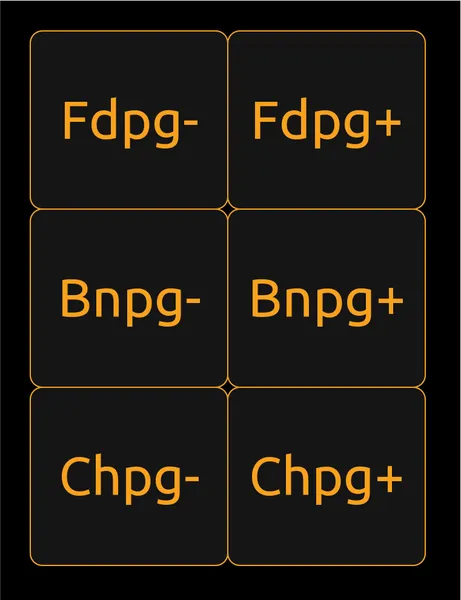
How It Works
- Short tap → sends the default command
- Long press → triggers a different command via another MIDI Remote in MA2
- The detection is fully handled inside TouchOSC, while the actual long-press command is linked to a separate MIDI Remote line in grandMA2.
This works everywhere those buttons exist, including inside pop-up windows.
Buttons with Long-Press Function
Fdpg-→ Go to Fader Page 1Bnpg-→ Go to Button Page 1Chpg-→ Go to Channel Page 1Store→ Opens Store Options
So for example:
- Tapping Store = normal store.
- Holding Store = opens the Store Options (DSO) menu on MA2.
Why Only a Few Buttons Use It?
- Long-press adds complexity and doubled MIDI lines per button.
- These are only used where it genuinely improves workflow.
3.7 Screen Encoder
This module is a small but very practical tool that lets you remotely scroll any MA2 screen window, the same way as turning the physical Screen Encoder on the console.
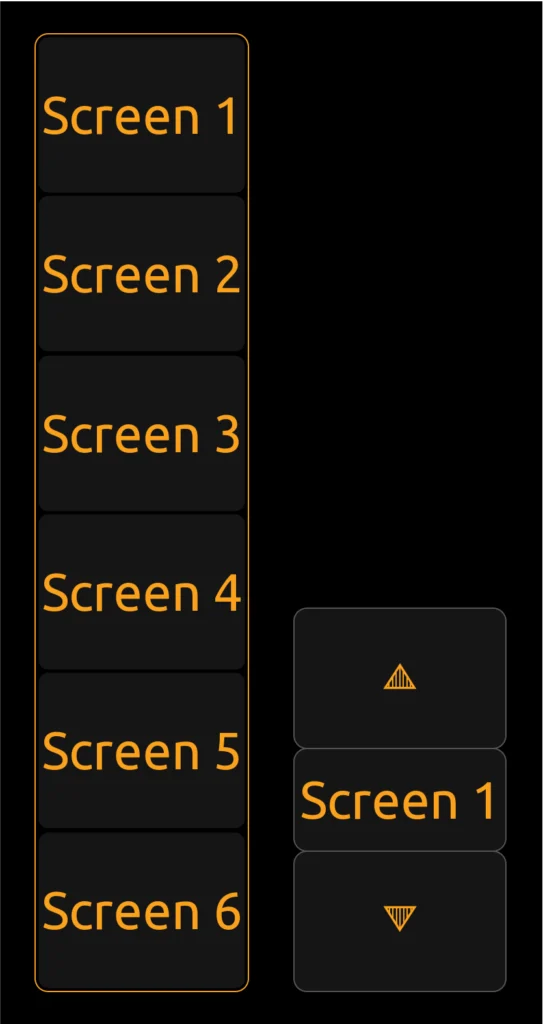
What It Does
- Emulates the Screen Encoder wheel from MA2
- You first select which screen (1–6) you want to control
- Then press UP / DOWN to scroll, move focus, or change values in that screen
Why You Must Select the Screen Manually
grandMA2 does not send any MIDI feedback about which screen is currently active/focused.
Because TouchOSC has no way to detect this automatically, the only reliable method is to manually choose the screen (1–6) → then use the Up/Down arrows to control it.
Layout History
In earlier versions of this layout, Screen Encoder control used full rotary encoders with push-click, just like other encoder modules.
After beta testing, this was simplified into the current compact design.
3.8 Gamepad Integration (Beta / Work in Progress)
This module is still experimental, but already functional.
You can connect a physical game controller (PS5, Xbox, Nintendo, generic USB/Bluetooth…) and see all button, trigger, and joystick inputs directly inside TouchOSC.
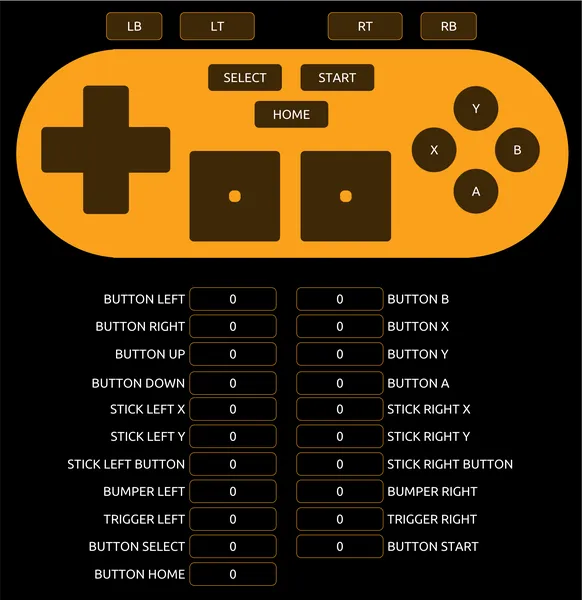
What Works Right Now
- Connect any controller via USB or Bluetooth
- TouchOSC will automatically detect it and display real-time input values for:
- D-Pad (Up / Down / Left / Right)
- A/B/X/Y or Cross/Square/Triangle/Circle
- Joysticks (X and Y axis)
- Triggers (LT / RT or L2 / R2)
- Bumpers (LB / RB or L1 / R1)
- Select / Start / Home buttons
Useful for testing if your device is detected and calibrated correctly
What’s Planned (Future Updates)
The goal is to make this page work similarly to the Special Master Assignment window, but for game controllers.
You’ll be able to:
- Select any button or joystick on the controller
- Assign any MIDI Remote ID (Pan/Tilt, Exec, Macro, FX, Cue, Group, etc.)
- Do it directly on the tablet with no computer needed
This takes time because:
- There are over 1000+ possible MIDI remote commands
- Mapping must be fast, safe, and 100% reliable in live shows
- Needs zero latency, no double-triggers, full compatibility across devices
- And lots of debugging + beta testing before release
The system works in prototype form, and it’s planned for a future update.
Roadmap
- Input Monitor → Already working
- Basic Mapping Version → Fixed button-to-MIDI setup + user feedback phase (planned for V02)
- Full Assignment System → Assign any controller button to any MIDI command directly from the tablet (planned for V03)
If you want to join the beta testing or help shape this feature, feel free to contact me.
3.9 Dual Tablet Integration (Coming Soon)
The layout is currently designed to be used on one tablet at a time.
You can technically connect several devices to the same MA2 session, but there are a few limitations you should know about.
Current Situation
- Multiple tablets running TouchOSC can connect to the same MA2 session.
- All of them can send MIDI to MA2 at the same time.
- But the layout is still treated as one control surface, not multiple synchronized ones.
This means:
- No page synchronization → Each tablet stays on its own page and popups.
- Edit Mode & Lock Screen apply only to the local tablet, not the others.
- If two devices control the same executor or fader, the last message received wins → potential conflict.
Why It’s Not Supported Yet
To make true multi-tablet usage safe and reliable, I would need to build:
- Conflict protection and command safety rules to prevent double triggers
- A way to synchronize page states, popups, lock status, edit mode, etc.
- Possibly restructure how almost every message is routed internally
Implementing this requires a significant architectural rewrite of the layout’s internal logic to ensure zero-latency synchronization between devices.
Development is ongoing and is planned for a future update.
3.10 APC Mini Integration (Coming Soon)
The layout will soon support Akai APC Mini as an external hardware control surface for grandMA2, tightly integrated with this TouchOSC layout.
Planned Features
When released, the APC Mini module will allow:
- 8 Faders + Master fader → directly mapped to MA2 executors or special masters
- 40 Pads (5×8 grid) → can trigger cues, execs, macros, chasers, etc.
- LED Feedback → pads light up when an Exec is active (Go, Flash, Solo, Toggle…)
- Shift Layer Support → one physical button → multiple pages/banks of commands
- Bi-Directional MIDI → hardware updates UI, UI updates hardware
Want to Beta Test?
If you already own an APC Mini and want early access once the first version works:
➡ Send me an email, I’ll include you in the beta test group.
Section 4 – Lua Plugin
4.1 What the LUA Plugin Does
The LUA Plugin is an automatic setup tool. It prepares your MA2 showfile so the TouchOSC layout can communicate correctly. No need to manually import MIDI Remotes or assign Special Masters.
What the Plugin Installs
- ~1000 MIDI Remote lines used by the layout
- Special Master executors on Pages 101–105 (backend only)
- Helper macros used for plugin install, uninstall, and export actions
This process takes about 10 seconds and works on any new or existing showfile.
What the Plugin Never Modifies
It does not touch:
- Your Patch / Fixtures / Universes
- Your Sequences, Cues, Presets, or Programmer data
- Your Views, Profiles, Users, or Network settings
- Your TouchOSC layout file (you load that separately on your tablet)
Where Special Master Executors Are Stored
To control Speed Masters, Rate, Program Time, Grand Master, etc., the plugin creates hidden executors in MA2.
These are not for show control, they are only used as a bridge between TouchOSC and MA2.
- Page 101 → SpecialMaster 1.x → Assigned to Executors 101.1 → 101.11
- Page 102 → SpecialMaster 2.x → Assigned to Executors 102.1 → 102.6
- Page 103 → SpecialMaster 3.x → Assigned to Executors 103.1 → 103.15
- Page 104 → SpecialMaster 4.x → Assigned to Executors 104.1 → 104.15
- Page 105 → SpecialMaster 5.x → Assigned to Executors 105.1 → 105.15
Important Notes
- If executors already exist on Pages 101–105, they will be deleted and replaced during installation.
- You do not need to rename, label, or modify these executors, they are backend only.
- The 100 mm fader popup in the layout simply selects which Special Master to control from these executors.
Why This Plugin Exists
Before the plugin, setup required:
- Manually importing multiple macros
- Manually importing ~1000 MIDI Remotes
- Manually assigning every Special Master to executor pages
This was slow, error-prone, and unsafe during touring or show prep.
Now it’s:
- 3 clicks → 10 seconds
- Always identical and reliable
- Safe to run on any new or existing showfile
Limitations of LUA in MA2
- Limited persistence hooks : complex merge operations (like appending to the MIDI table) are not supported natively.
- MIDI Remote import behavior : MA2 replaces the full table when importing XML (no native merge).
Despite these limits, the plugin handles everything this layout needs reliably.
4.2 How to Install / Export / Remove the Plugin
The setup can be done manually or automatically.
The recommended method is using the LUA Plugin.
Install the Plugin
- On MA2 : Create Basic Window → System → Plugins → Edit New Plugin
- Paste the LUA plugin code → Save
- Tap the plugin → choose “Install Plugin”
- Confirm the dialog: “
- “This will install MIDI Remotes and assign Special Masters for TOSC communication.
- If you have executors on Pages 101–105, they will be deleted and replaced.
- Proceed with installation?”
- Press Please → Please → Please
- “PLUGIN COMPLETED SUCCESSFULLY ! MIDI Remotes have been installed.
- Special Masters were assigned to Pages 101–105 for communication with TOSC.
- You do not need to use or modify them. They are for backend purposes only.”
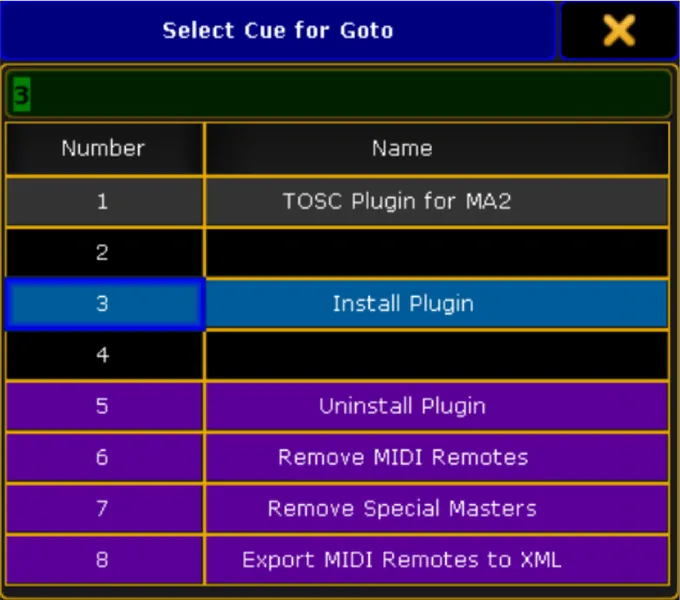
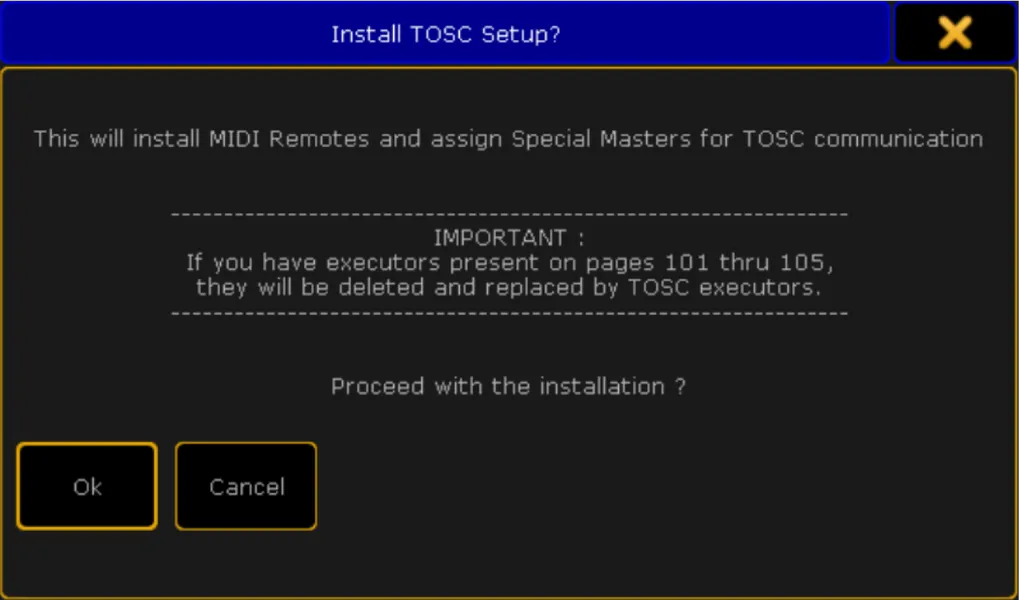
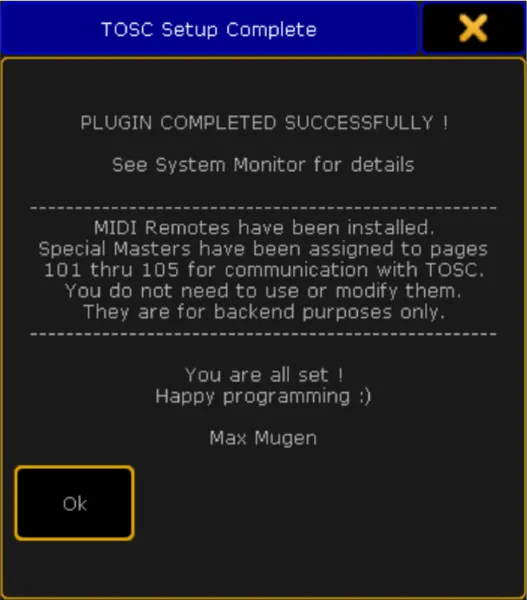
To see what the plugin actually did, check the Command Line feedback and the System Monitor window. They will show you the full execution log, including any errors.
Uninstall the Plugin
- Run the plugin again
- Choose Uninstall Plugin
This removes:
- All MIDI Remotes created by the plugin
- Executor pages 101–105 used for Special Masters
- The plugin itself
You can also choose to :
- Remove only MIDI Remotes
- Remove only Special Masters
Export MIDI Remotes to XML
This option lets you export all current MIDI Remote entries to an XML file.
- Run the plugin
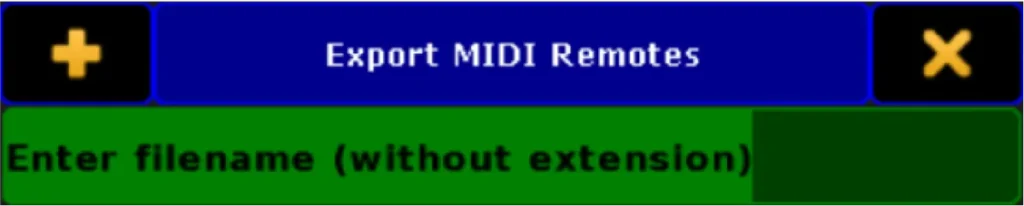
- Choose “Export MIDI Remotes to XML”
- Type a filename (without extension) → press Please
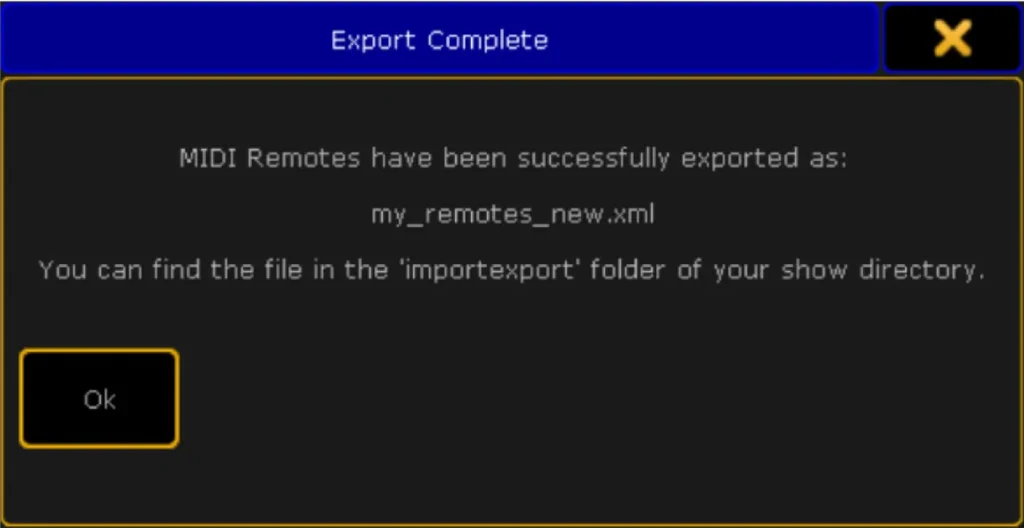
- “Export Complete MIDI Remotes have been successfully exported as:
my_remotes_new.xmlYou can find the file in the “importexport” folder of your show directory.”
- “Export Complete MIDI Remotes have been successfully exported as:
4.3 MIDI Remotes Architecture
This layout is heavily pre-wired. Every button, fader, encoder or popup you see in TouchOSC is already linked to a MIDI Remote line inside MA2.
MIDI Remotes usage status
- Total available in MA2 : 1028
- Used by this layout : 1011
- Still Available : 17
That means you can safely add up to 17 custom MIDI Remote entries without removing or modifying any existing ones.
Free MIDI Channels
You can still use the following MIDI channels for your own triggers:
- Channel 1, 2, 3, 4, 14, 15, 16
All other channels are fully used by the layout. Using them will create conflicts or break internal routing.
Safe Workflow Rules
To keep the system stable and editable:
- Do not delete, move, or rename any existing MIDI Remote lines
- If you want to modify a TouchOSC button:→ Only edit the Command field in Remote Inputs
- If you create new buttons in TouchOSC:→ They will do nothing until you assign them to one of the 17 free remote slots
- Use only the free MIDI channels listed above for your custom mappings
What If Your Showfile Already Has MIDI Remotes?
Important to know: MA2 cannot merge MIDI Remote tables.
Importing an XML always replaces the entire MIDI Remote list.
So you have three options :
- Clean install (recommended) : overwrite with this layout’s remotes via plugin
- Keep a few custom remotes : back up your show, install plugin, then recreate those few lines in the remaining 17 free slots
- Large custom setups : manual XML merge outside MA2 is possible but risky and time-consuming (unique indices, no collisions). With only 17 free slots left, it rarely makes sense
If someone finds a safe way to append MIDI Remotes using LUA or commands (not replace the table), please tell me. I’ll add it in the next update.
Stability Notes
- The plugin guarantees that MIDI Remote IDs match the TouchOSC layout
- Backend executor pages (101–105) are only used for Special Masters, you never need to touch them
- You can safely re-run the installer at any time on any showfile
- Ideal for LD’s and teams to standardize quickly.
Section 5 – Licensing, Credits & Contact
5.1 Licensing Terms
TLDR : Support independent development by purchasing a valid license.
This layout is a paid product. Purchasing it from me allows you to use it in personal or professional environments, but it does not allow redistribution.
You Are Allowed To
- Use the layout in live shows, tours, theatres, rentals, installations or studios
- Install it on multiple personal devices (tablet, computer, backup device…)
- Customize it for your own workflow or showfile
You Are Not Allowed To
- Share or send the layout to someone who did not purchase it
- Upload it to forums, Discord servers, Facebook groups, USB keys, torrent sites, etc.
- Sell or redistribute modified versions without written permission
- Include it in commercial showfile packages or rental kits without a commercial license
If you’re a company, rental house or educational institution and need multi-user licensing, just contact me.
By purchasing, you agree to these terms.
5.2 Support & Updates
Updates
- All buyers receive free updates, forever
- Updates include fixes, improvements, new modules and compatibility adjustments
- When a new version is released, you can download it again from the same place where you bought it (Gumroad / Website Account)
Support
Support is provided directly by me, not an automated bot.
You can contact me if:
- Something is not working or unclear
- You found a bug or want to report an issue
- You want a custom version (company branding, different fixed page, small theatre layouts, etc.)
5.3 Contact & Links
- Email : contactmaxmugen@gmail.com
- Website : mugenlighting.com
- Updates & Downloads : Gumroad
- More : Linktree
5.4 Credits & Thanks
A heartfelt thank-you to all the lighting designers, programmers, venue crews and beta testers who helped shape this layout. Your real-world feedback, creative ideas and tour-rigged rigs made this tool stronger.
For the full list of contributors, and acknowledgements, please visit the Contributors Page
Together we’ll keep making lighting control smarter, faster and more fun.
Max Mugen
Feedback
I am continuously refining this architecture. Field data from active lighting programmers plays a critical role in future development updates.
What you can share :
- Feature Requests: Share your thoughts on UI/UX improvements or new network integrations you need for your upcoming shows.
- Bug Reports: Encountered a technical routing issue? Please provide detailed reproduction steps and system screenshots so I can patch it in the next build.
- Production Showcases: Has this layout accelerated your workflow? Send photos of your Front of House setup in action.
Your input drives the rapid evolution of these tools. If this layout has leveled up your workflow, sharing it with other programmers helps expand the ecosystem.

Max Mugen Lighting
Lighting Designer | Visual Artist | Automation Developer
I engineer lighting architectures, interactive control systems, and automation workflows for live performance and high-end studio pipelines. Available for custom system design and technical programming.
Work With Me
Explore My Work
Stay Connected


